
E-Commerce
Online store functionality with product catalogues, shopping carts, and checkout flows.
Turn any client app into a fully functional online store. The E-Commerce module in the App Builder gives your clients everything they need to sell products — from catalogue setup and customer checkout to order fulfilment and revenue reporting — all without writing a line of code.
Overview
The E-Commerce module covers the entire selling lifecycle. Staff build out their product catalogue in the editor, customers browse and buy through a polished storefront, and managers track orders and revenue from within the app. It works on web and mobile out of the box.
- Product catalogue — Organise products into collections with descriptions, images, pricing, variants, and inventory tracking
- Shopping cart & checkout — Customers add items to a persistent cart and complete a guided checkout flow with payment integration
- Order management — Staff process orders, manage shipping, update statuses, and archive completed sales
- Sales reporting — Pull financial reports over custom date ranges to track revenue and order volume
A Closer Look
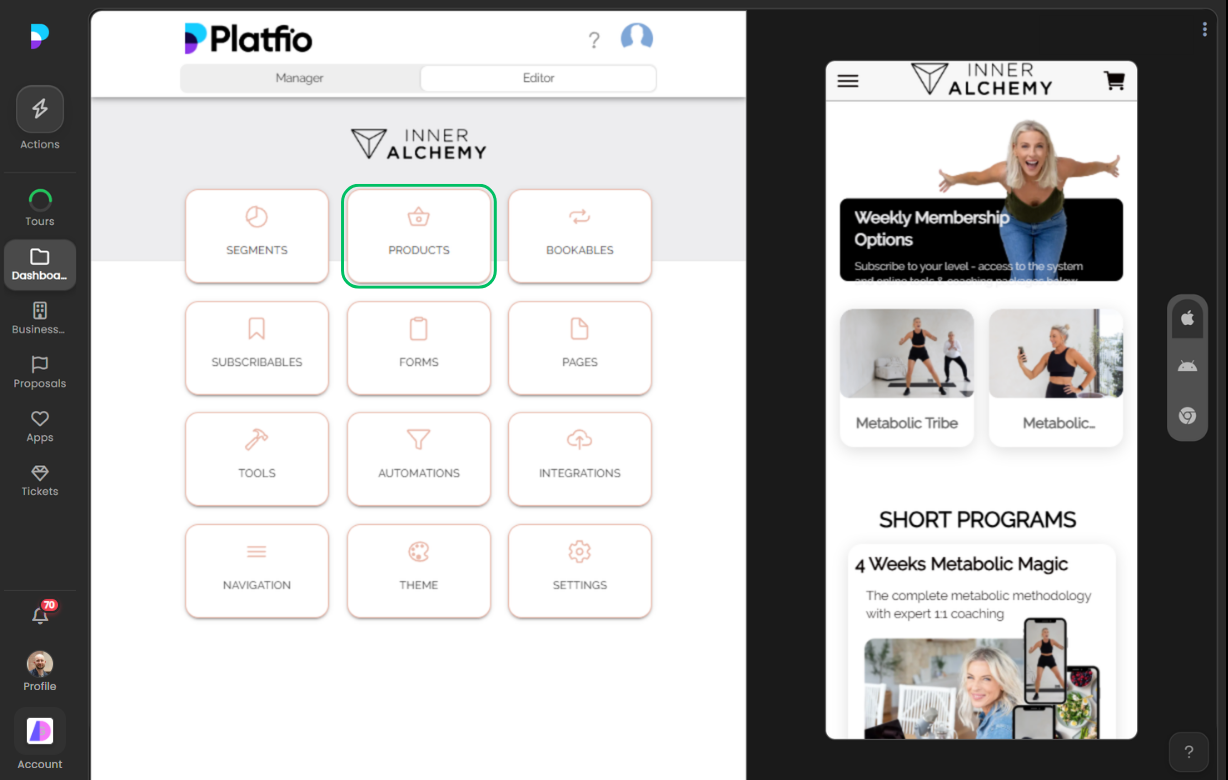
Selecting the Products Module
Everything starts in the editor. When a staff member is building out their client’s app, they select the Products module from the list of available modules. This single toggle is all it takes to unlock the full e-commerce experience — product management, cart, checkout, and order tracking are all included.

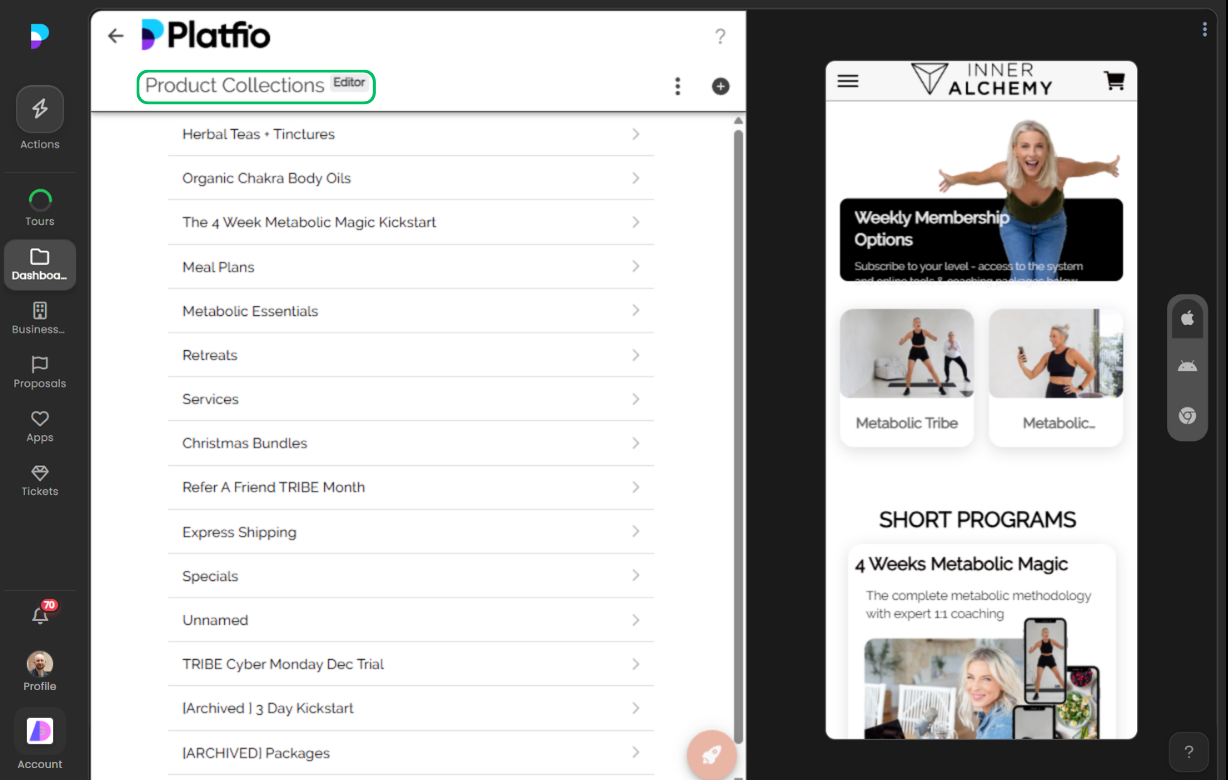
Organising Product Collections
Products are grouped into collections, giving the store a clear structure. A candle shop might have “Seasonal Scents” and “Everyday Essentials”; a clothing brand might split by category or drop. Staff create and manage these collections directly in the editor, keeping the catalogue organised as it grows.

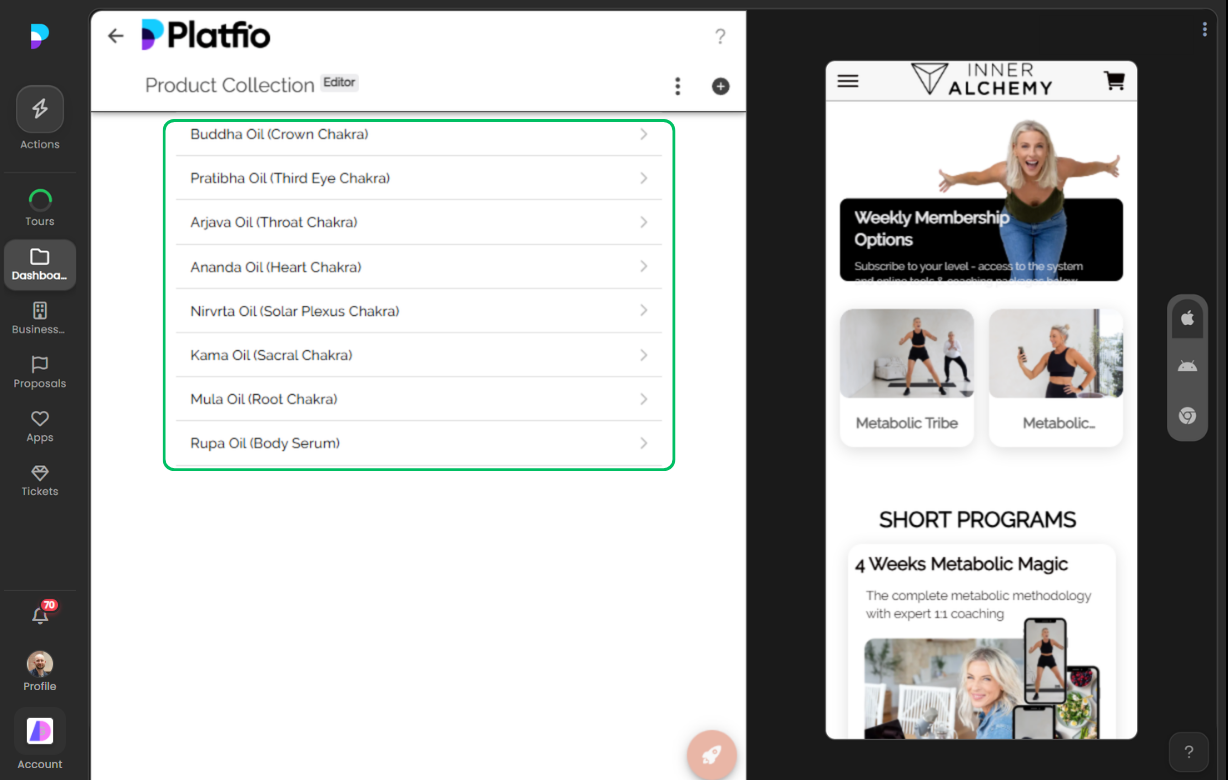
Managing Products Within a Collection
Inside each collection, staff see all of their products at a glance. From here they can add new products, reorder them, or dive into any individual item to edit its details. The list view keeps things manageable even as the catalogue scales to dozens or hundreds of items.

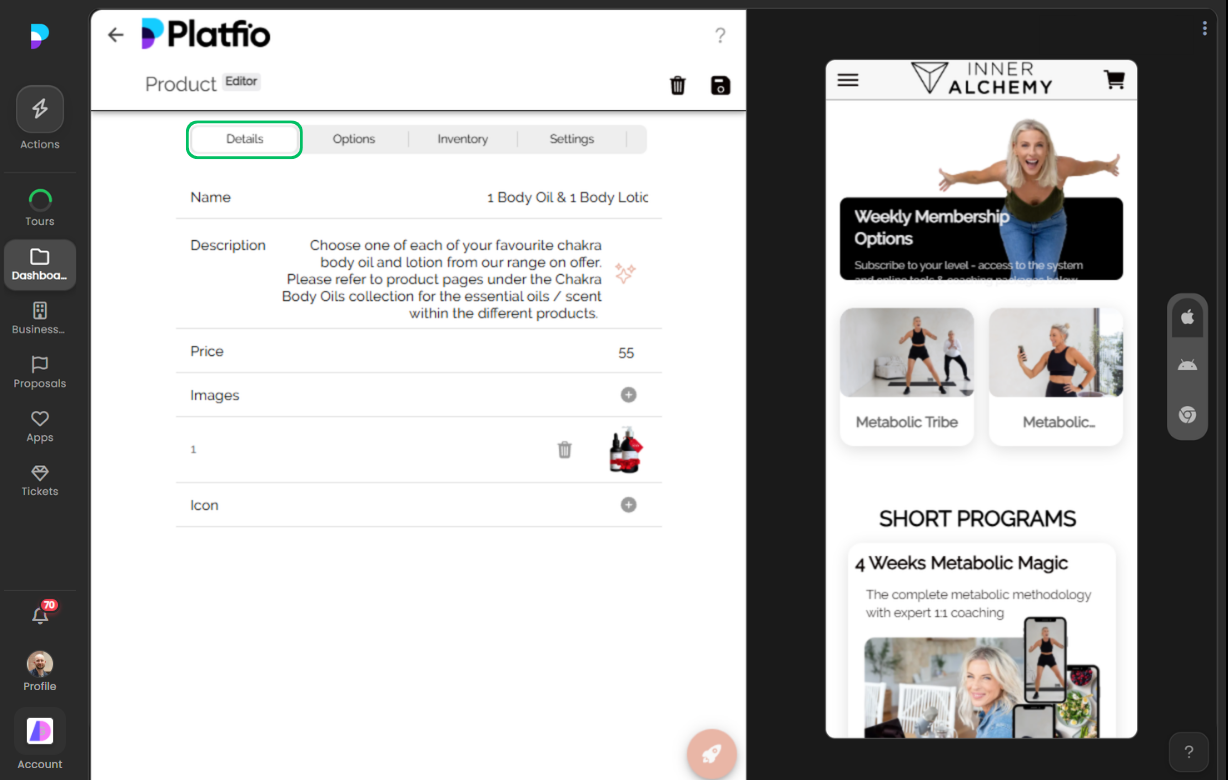
Setting Up Product Details
Each product gets its own detail screen where staff enter the essentials: name, description, price, and images. This is the foundation of every listing — the information customers see when they browse the store. Rich descriptions and multiple images help products stand out and convert.

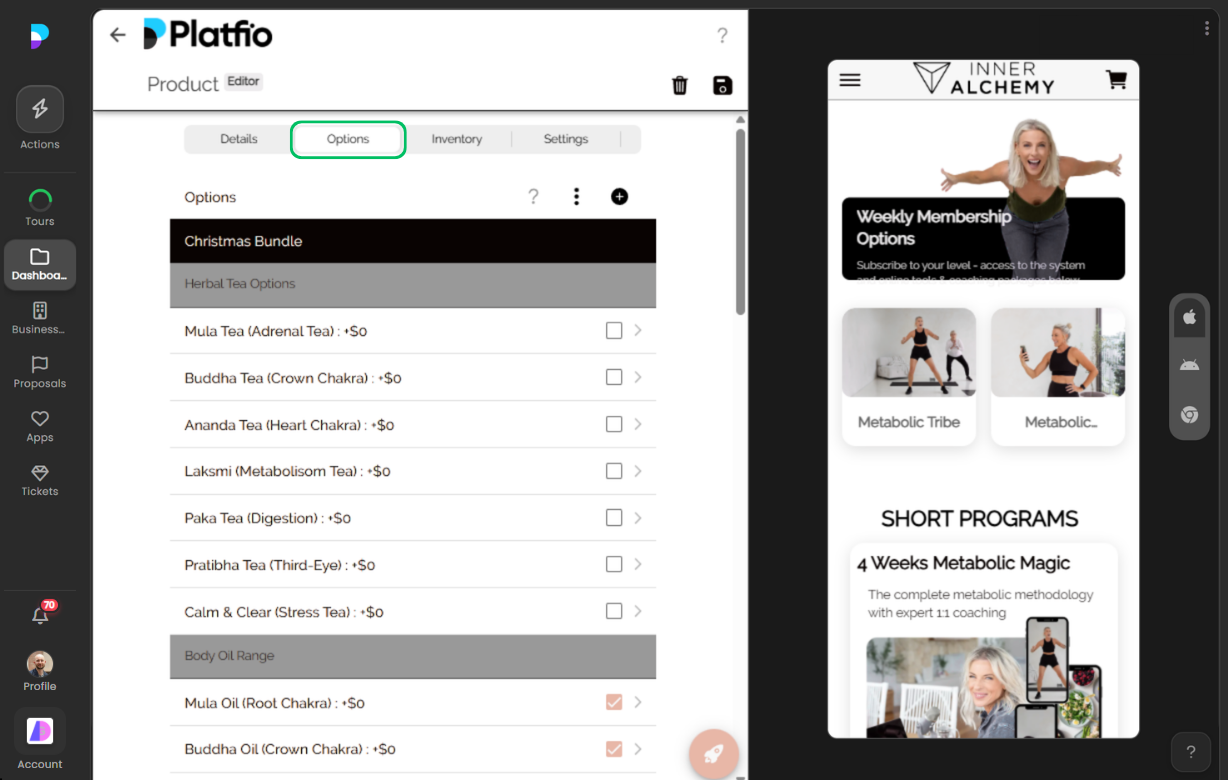
Adding Product Options and Variants
Many products come in different sizes, colours, or configurations. The options screen lets staff define these variants so customers can pick exactly what they want. Each option can carry its own pricing adjustment, keeping the catalogue flexible without duplicating products.

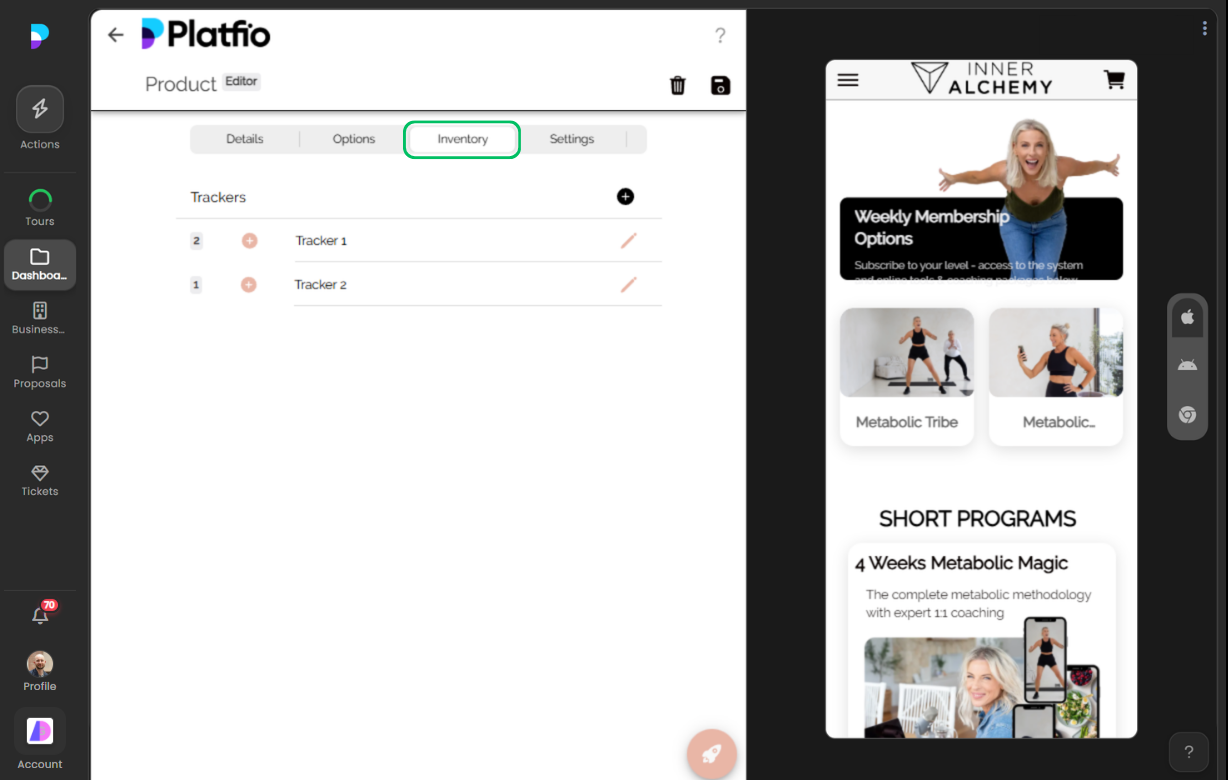
Tracking Inventory
Stock management is built right in. Staff set inventory levels for each product and the system tracks quantities as orders come in. Low-stock indicators help prevent overselling, and the interface makes it easy to update counts after restocks.

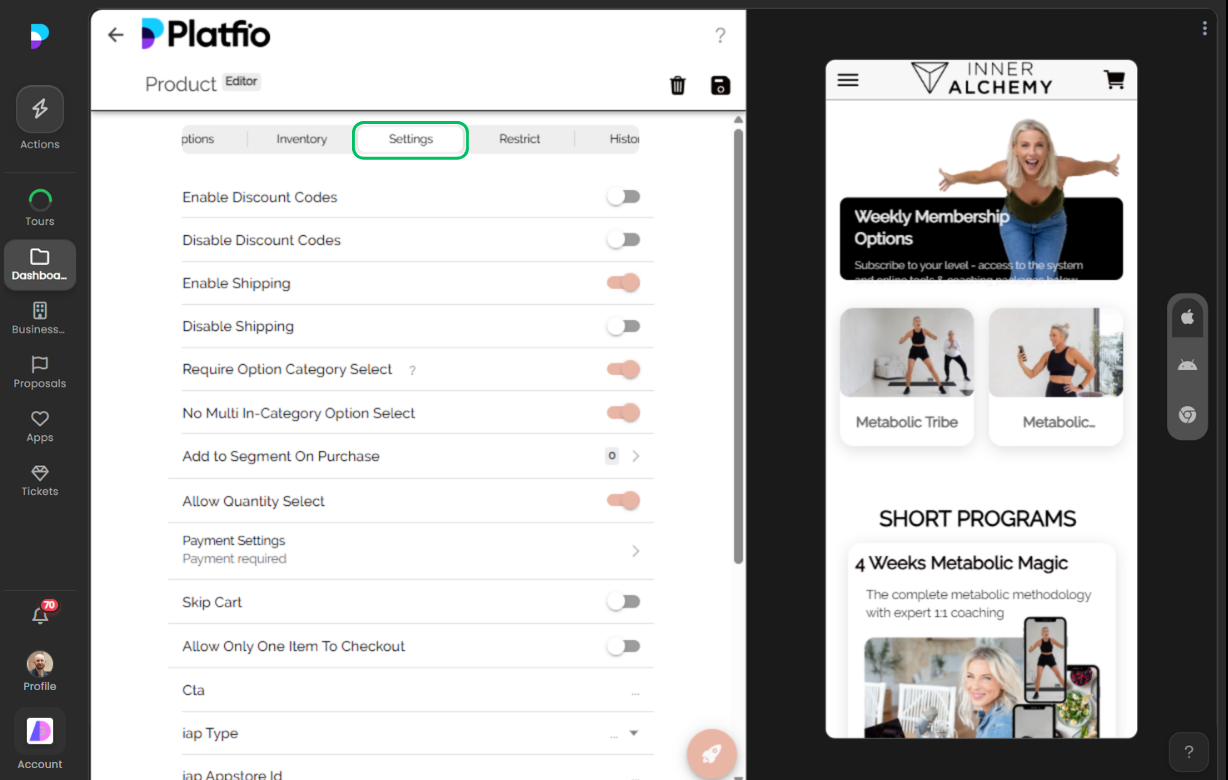
Fine-Tuning Product Settings
Beyond the basics, each product has a settings screen for controlling behaviour — visibility, availability, and other configuration that shapes how the product appears and functions in the storefront. It is the final step before a product is live and ready for customers.

Building Pages That Lead Into Products
With the catalogue ready, staff design the pages customers will navigate. The emulator preview shows exactly how the app will look on a real device. Pages can include hero banners, featured collections, and calls-to-action — all flowing naturally into the product browsing experience.

Browsing Product Collections
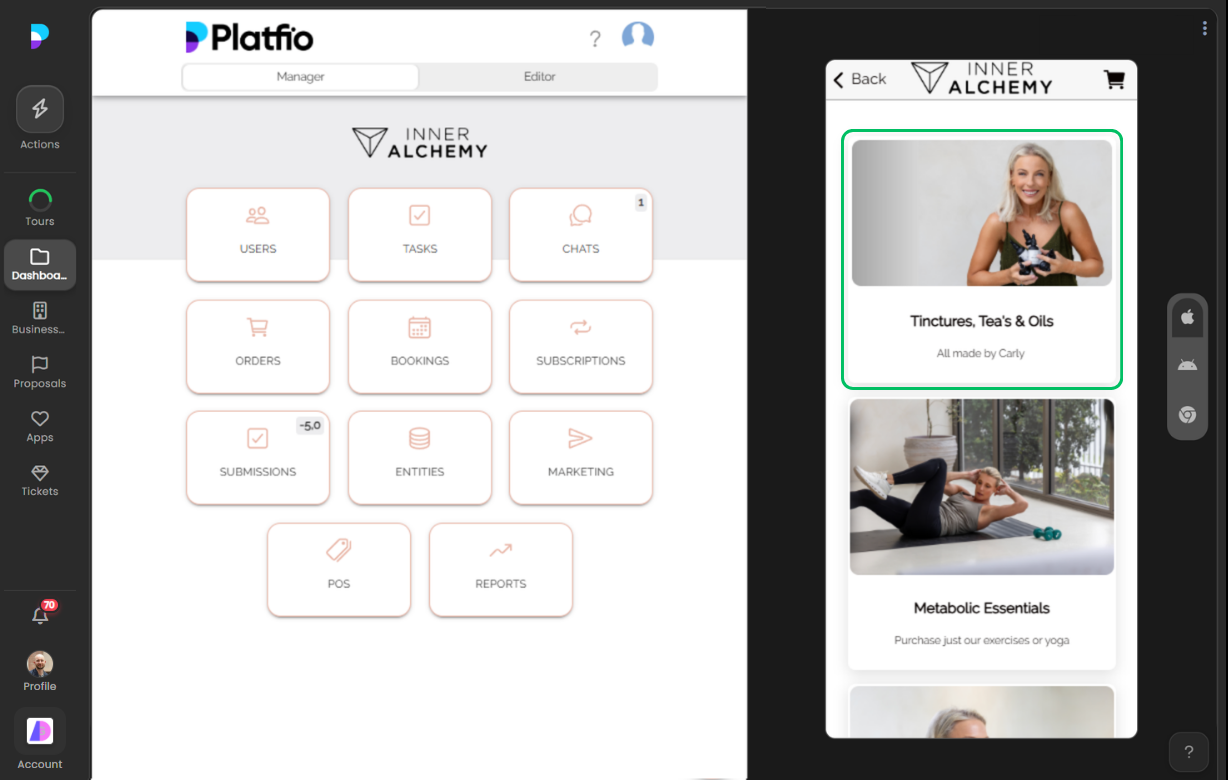
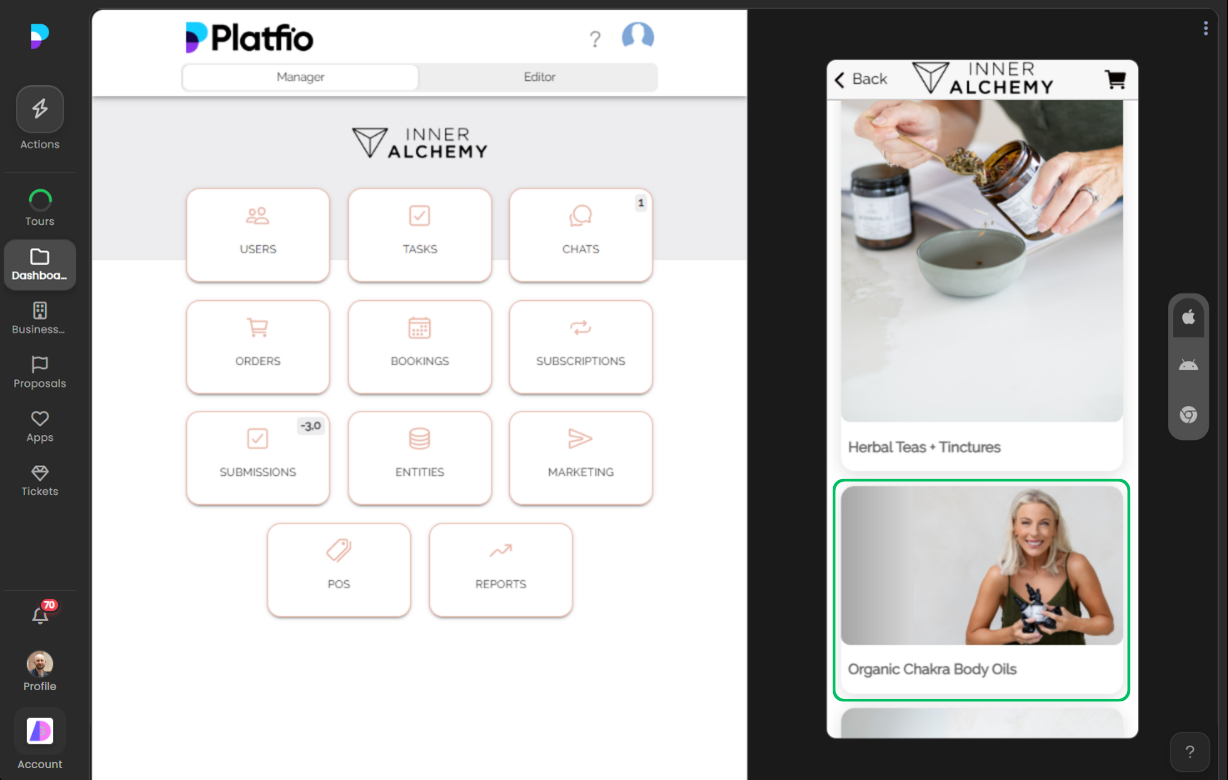
When a customer opens the store, they see product collections displayed as clean, tappable cards. Each collection has a name and image that draws them in. It is the first impression of the store, and it sets the tone for the entire shopping experience.

Exploring the Product List
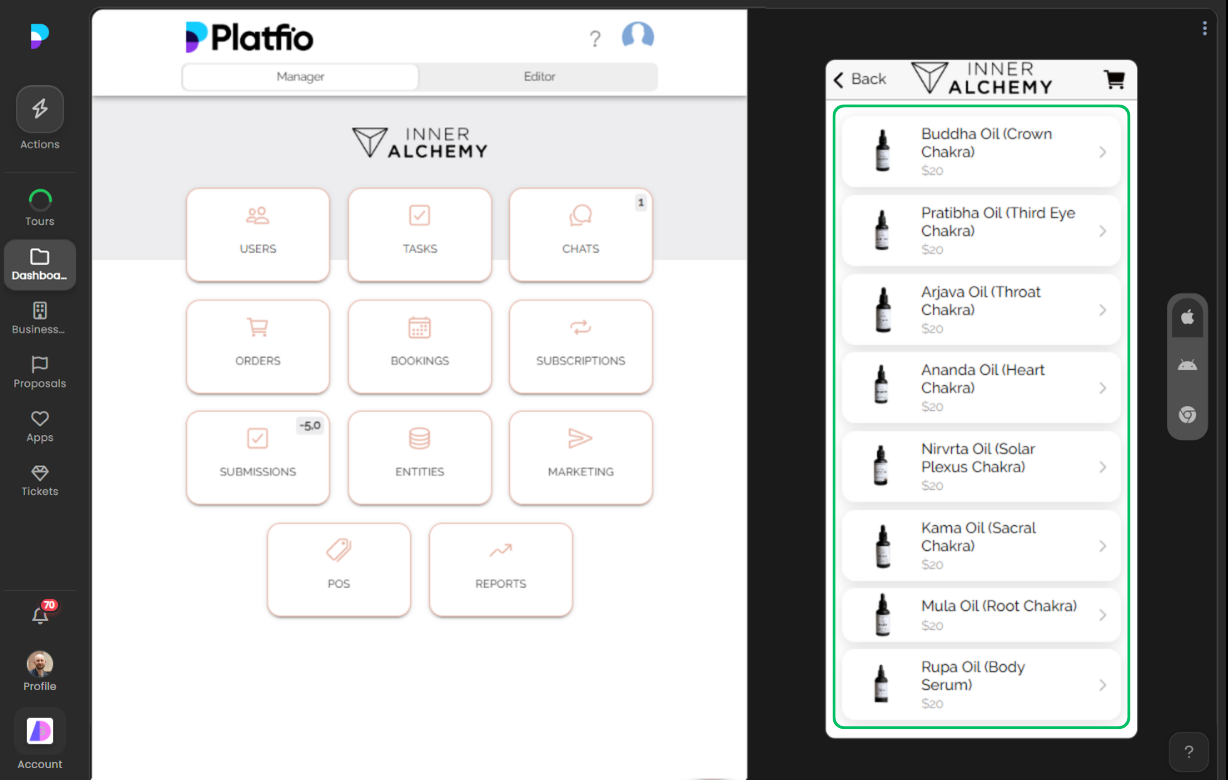
Tapping into a collection reveals the full product list. Customers see product images, names, and prices in a layout optimised for quick scanning. Whether the store has five products or fifty, the list stays clean and easy to browse on any screen size.

Viewing Product Details
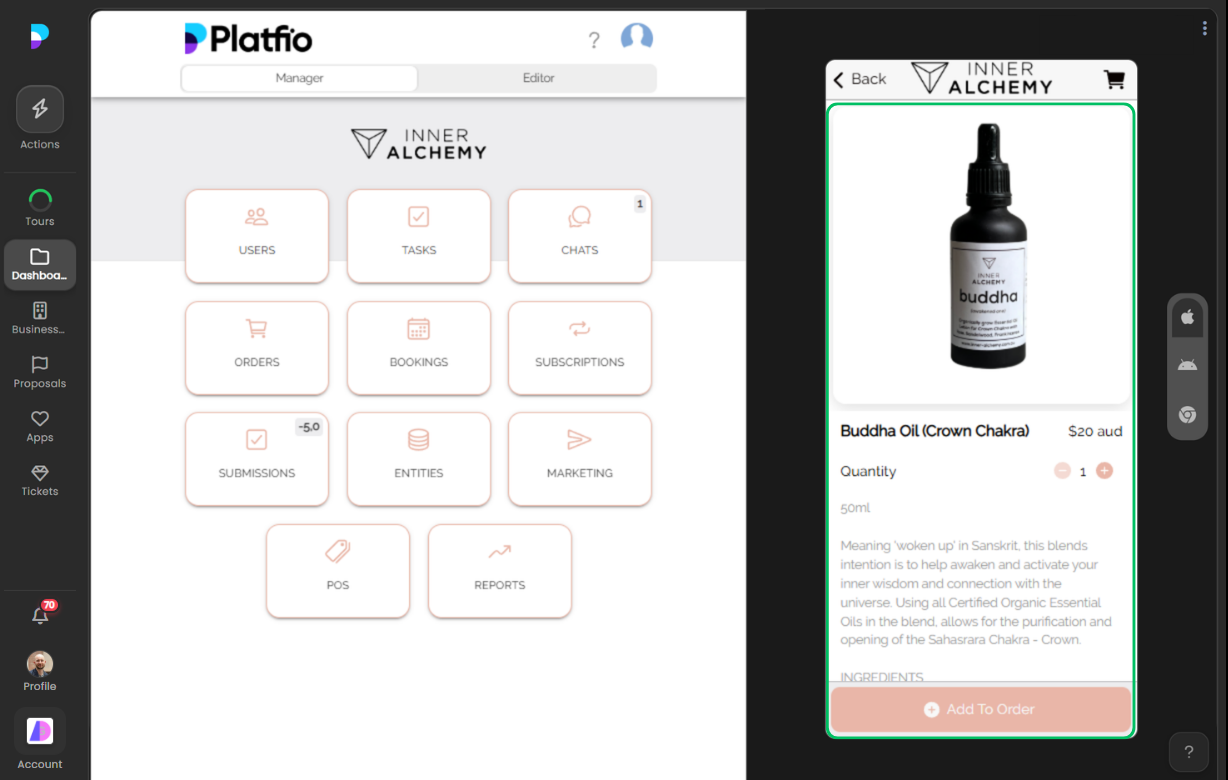
Selecting a product opens its full detail view — large images, a complete description, pricing, and all available options. This is where customers decide to buy. The layout is designed to build confidence: clear information, prominent pricing, and a straightforward path to the cart.

Adding to Cart
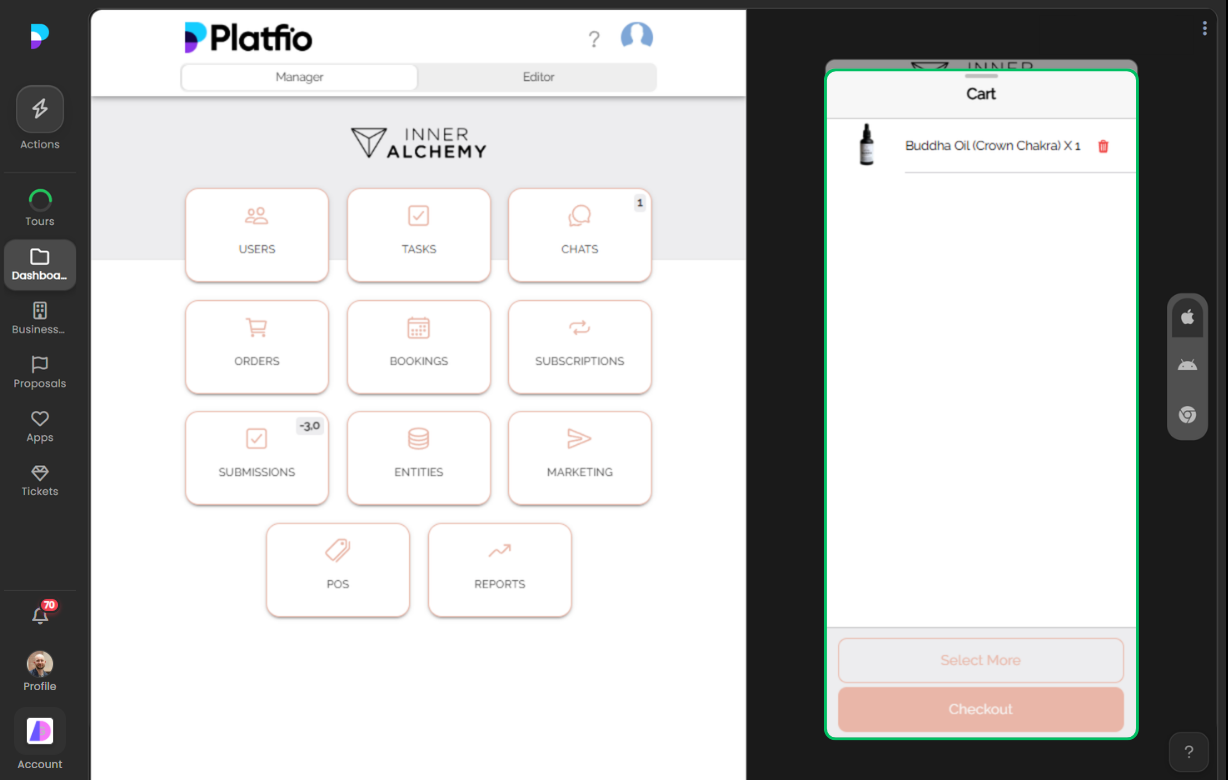
With one tap, the product goes into the cart. Customers can choose their variant, adjust quantity, and continue shopping or head straight to checkout. The cart persists across sessions, so nothing is lost if they close the app and come back later.

Completing Checkout
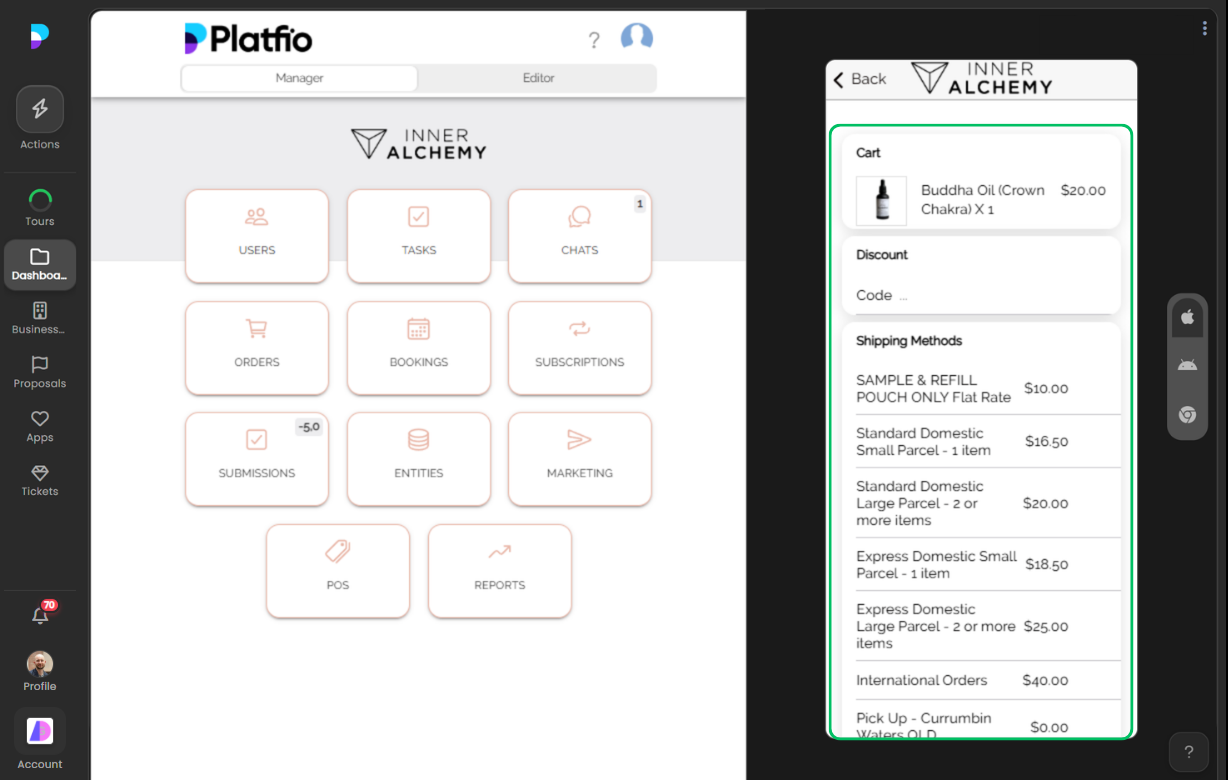
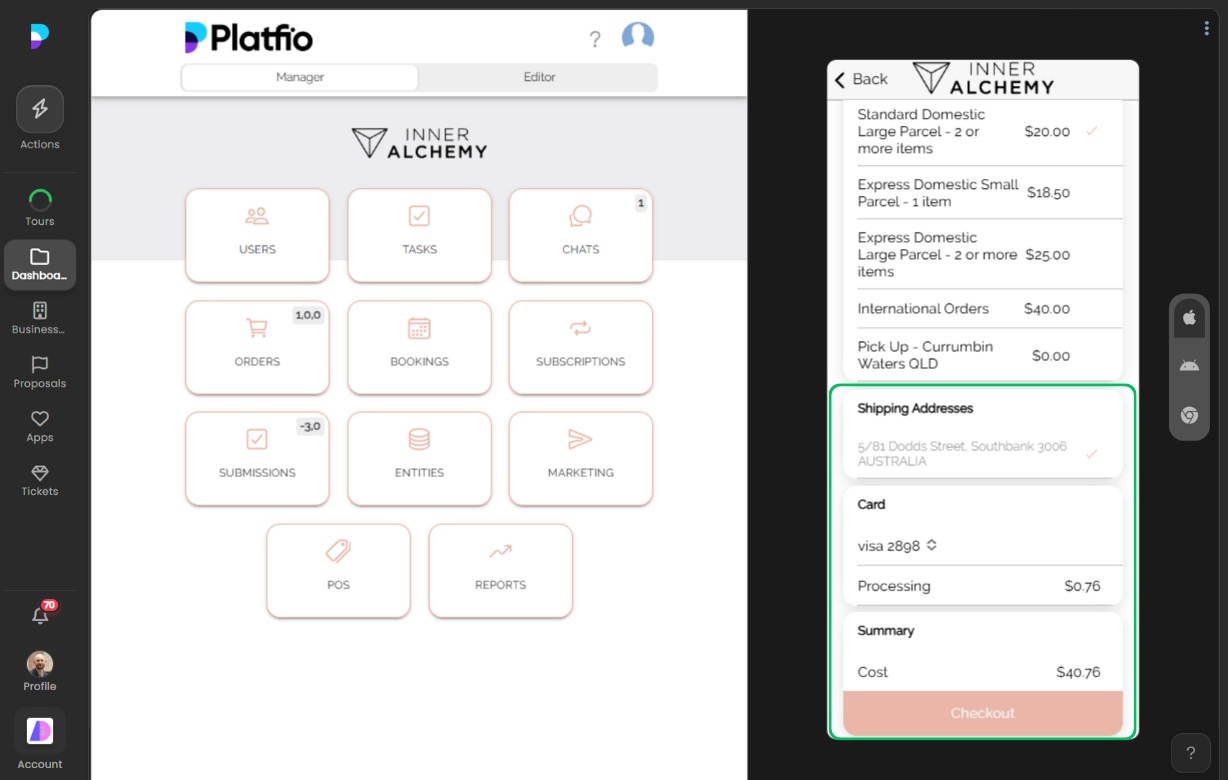
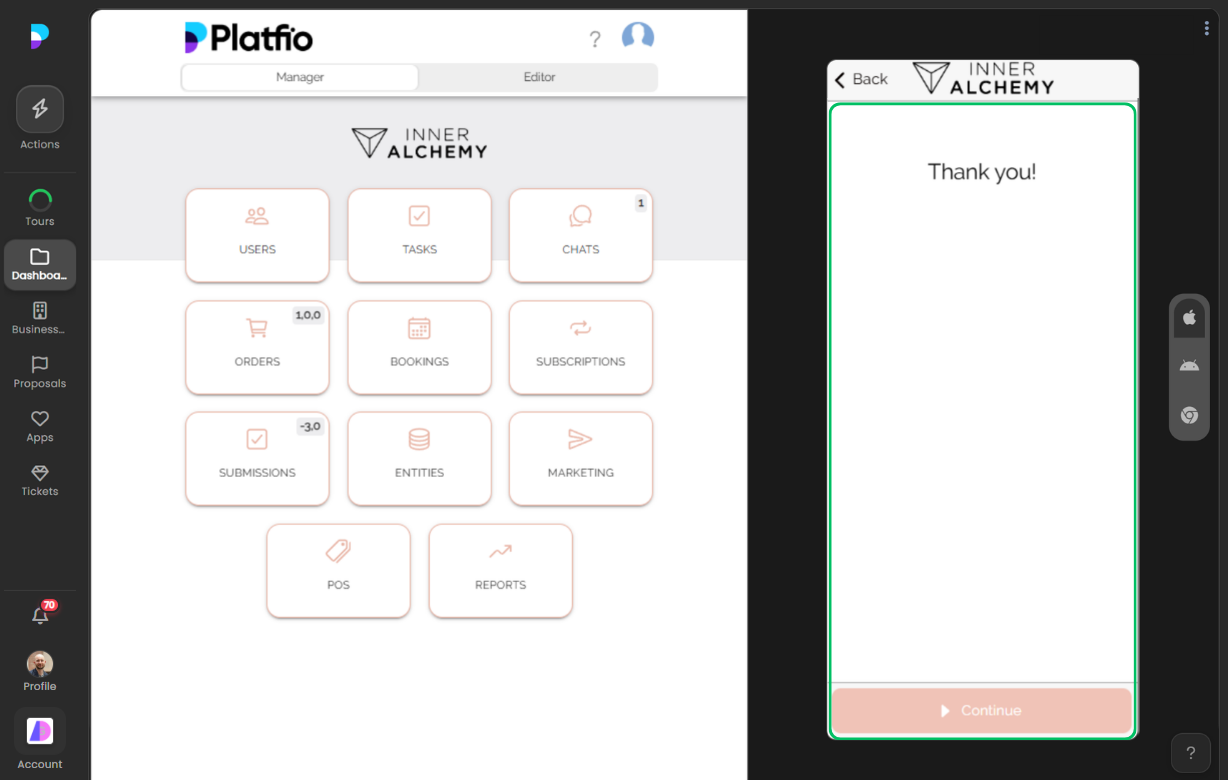
The checkout flow walks customers through entering their details and completing payment. It is streamlined to reduce friction — fewer steps, clear progress, and a confirmation at the end. Once the order is placed, both the customer and the store owner are notified.

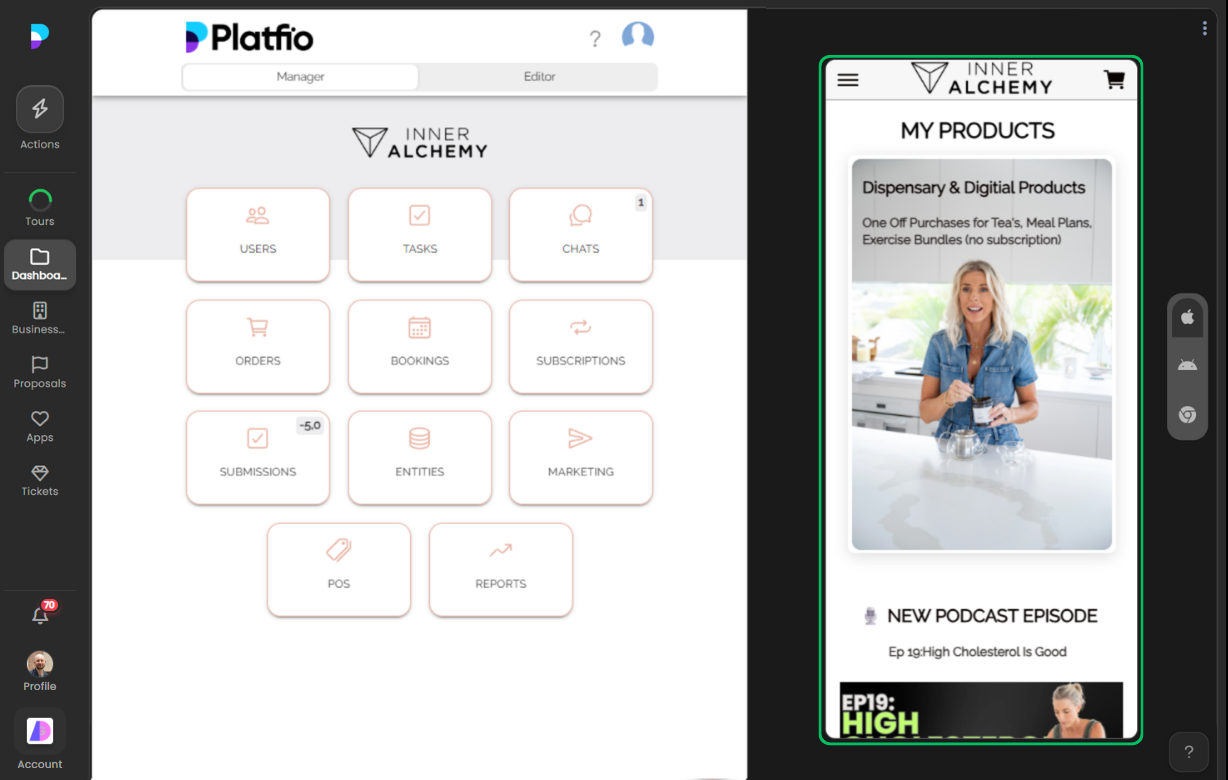
Accessing Orders in the Manager
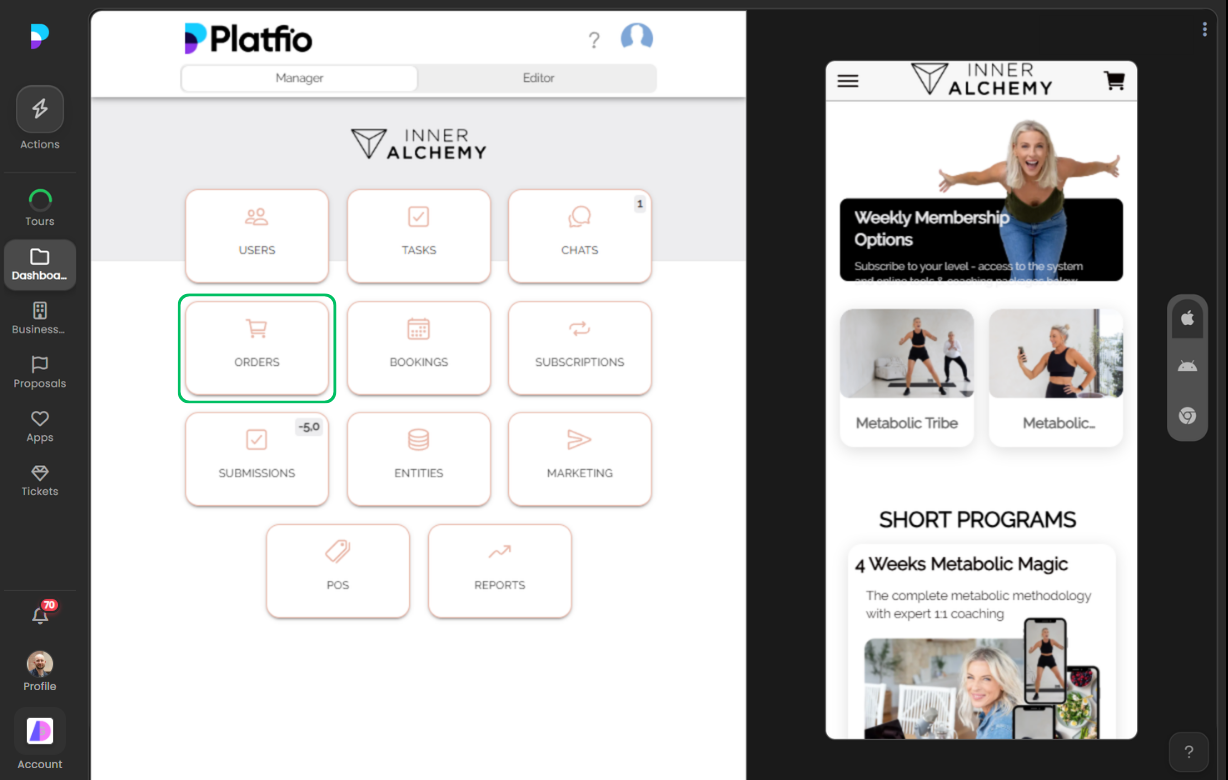
Once sales start coming in, staff switch to the Manager section of the app. From the Manager menu they select Orders, which takes them into the fulfilment workflow. This is where the back-office side of e-commerce lives — separate from the storefront, but just as important.

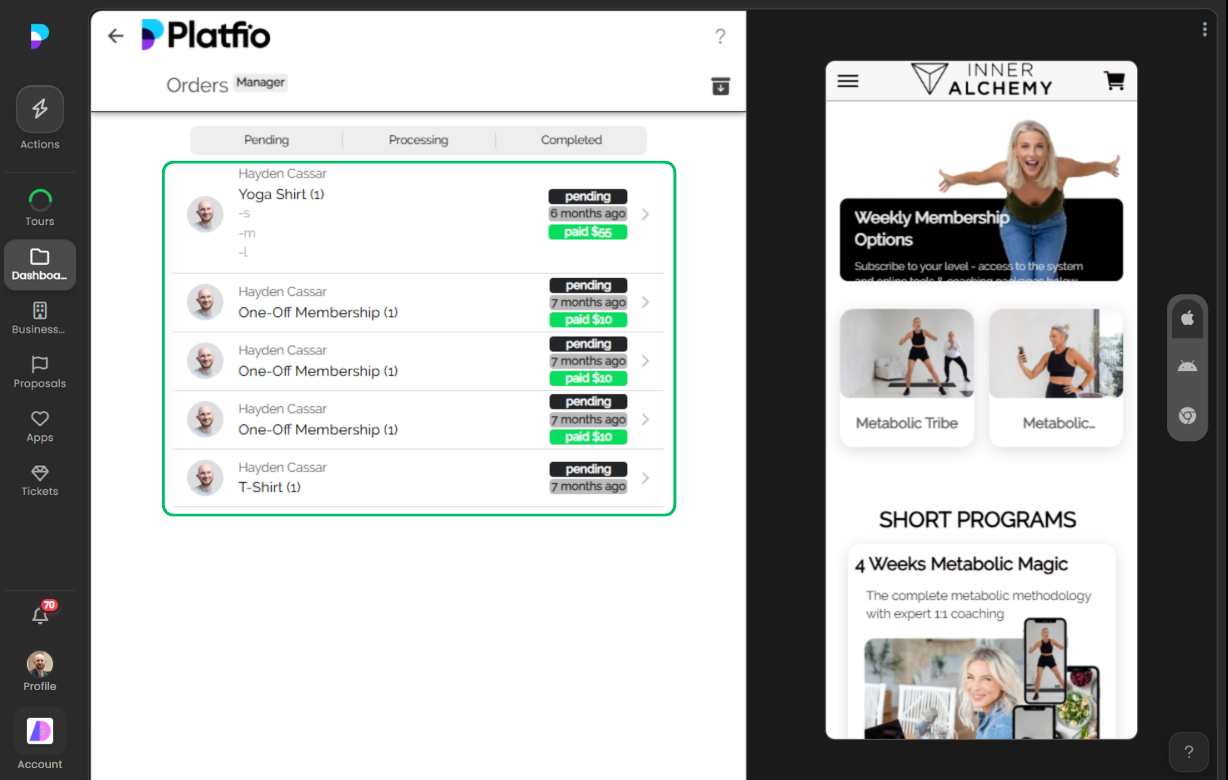
Reviewing Current Orders
The orders list shows every pending and recent order at a glance. Staff can see order numbers, customer names, totals, and statuses in a single view. It is designed for speed — the people processing orders need to find what they are looking for quickly.

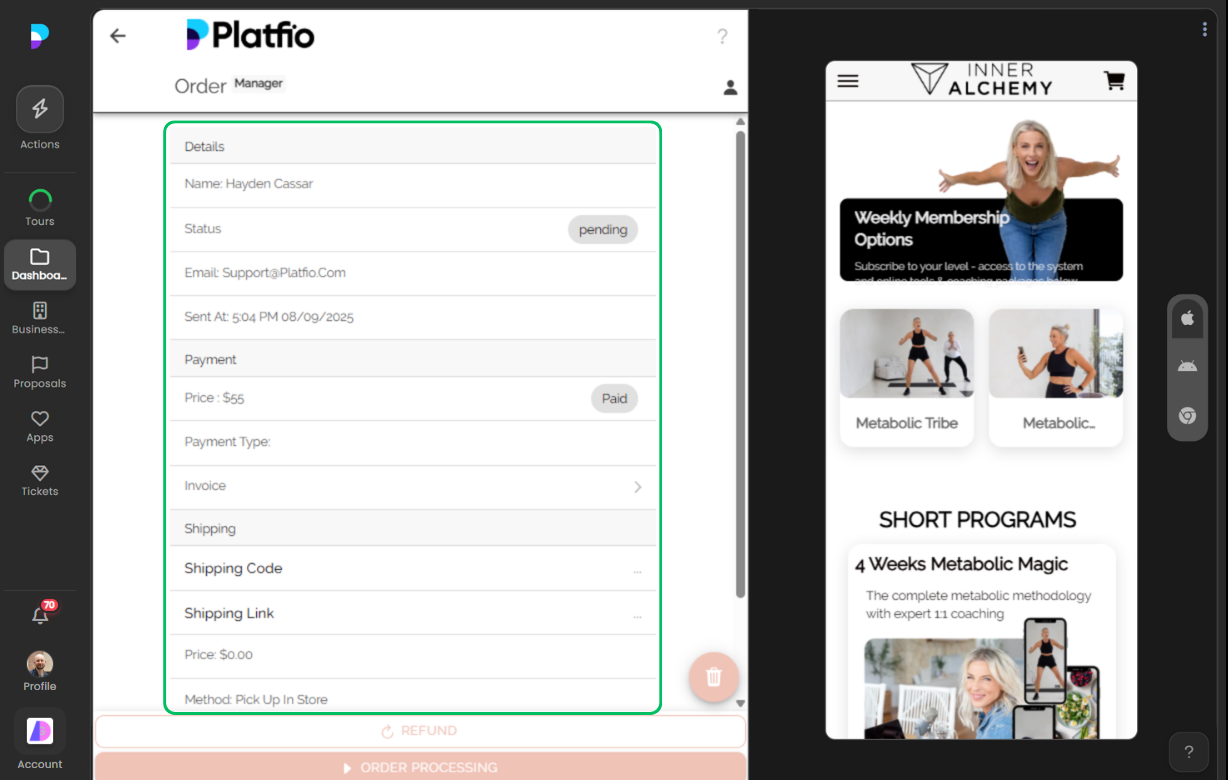
Managing an Individual Order
Tapping into an order reveals the full detail view. From here, staff can process shipping, update the order status, archive a completed order, or delete it entirely. Every action a staff member needs is available in one place, reducing the time from order received to order shipped.

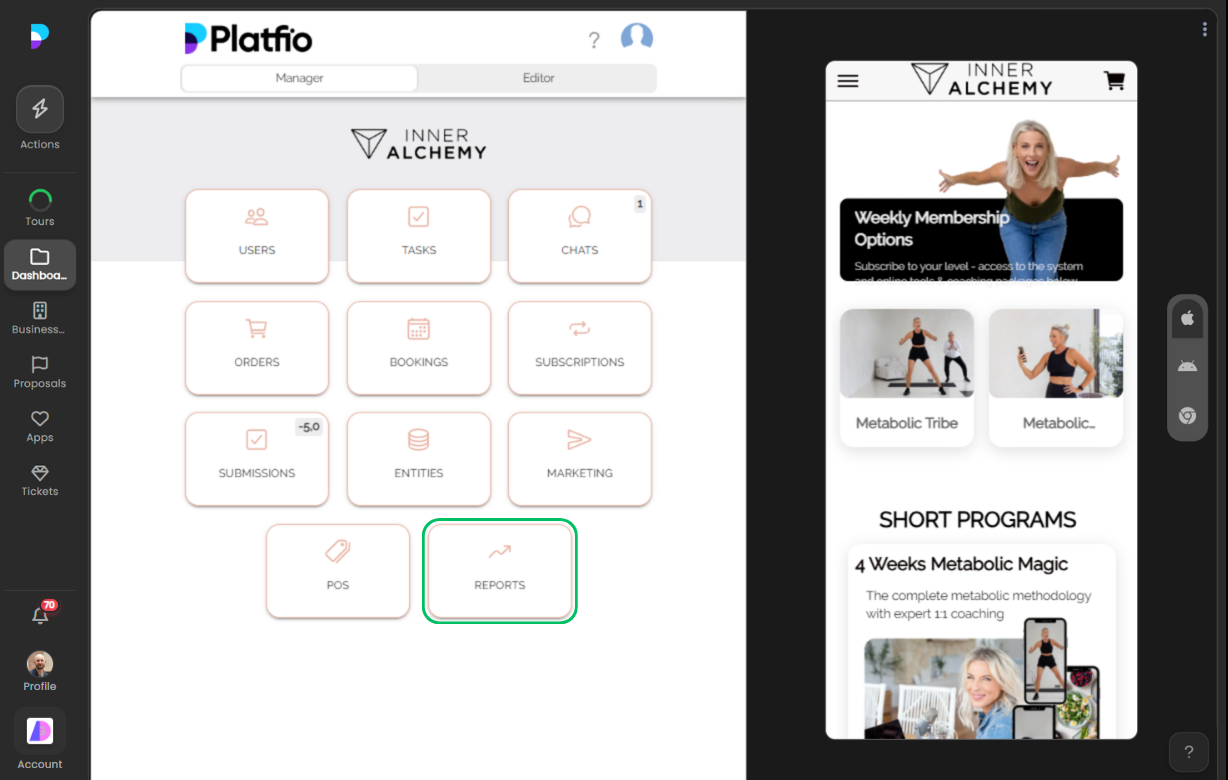
Opening Sales Reports
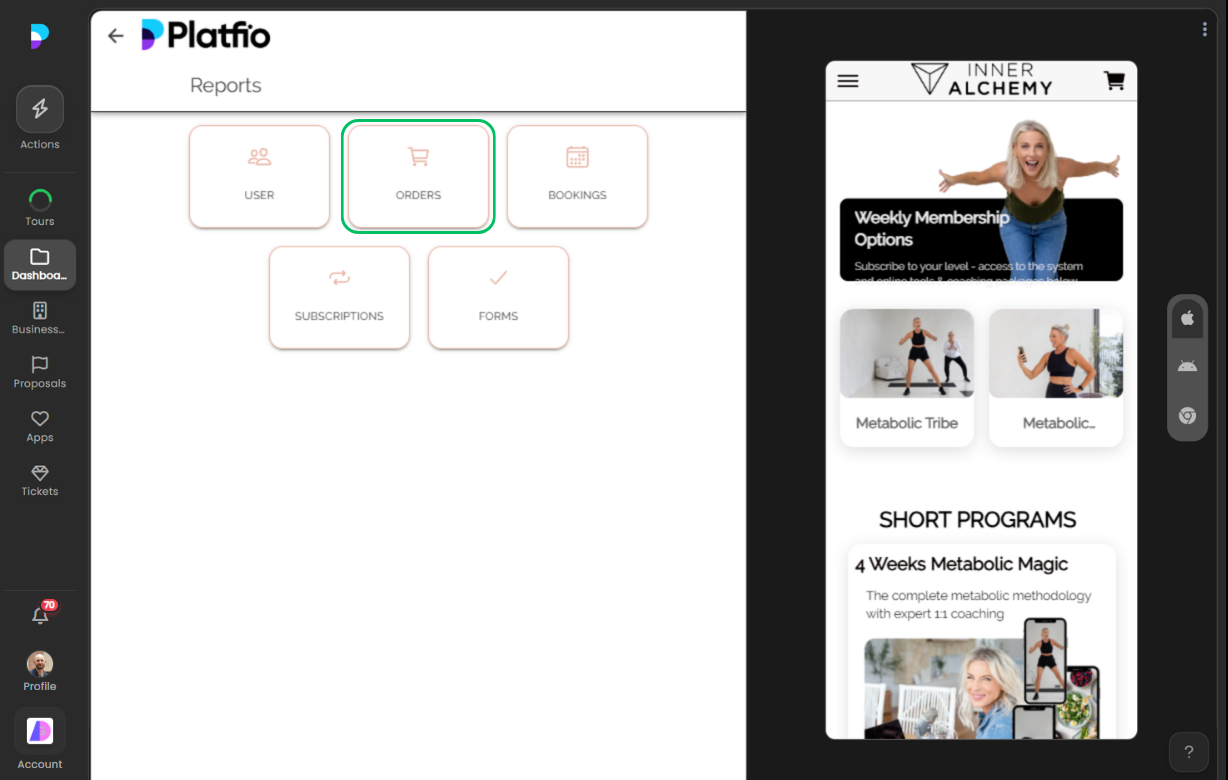
Beyond individual orders, the Manager includes a Reports section for tracking business performance. Staff select Reports from the Manager menu and then choose the report they need — in this case, the Orders report that shows revenue and sales data.


Selecting a Date Range
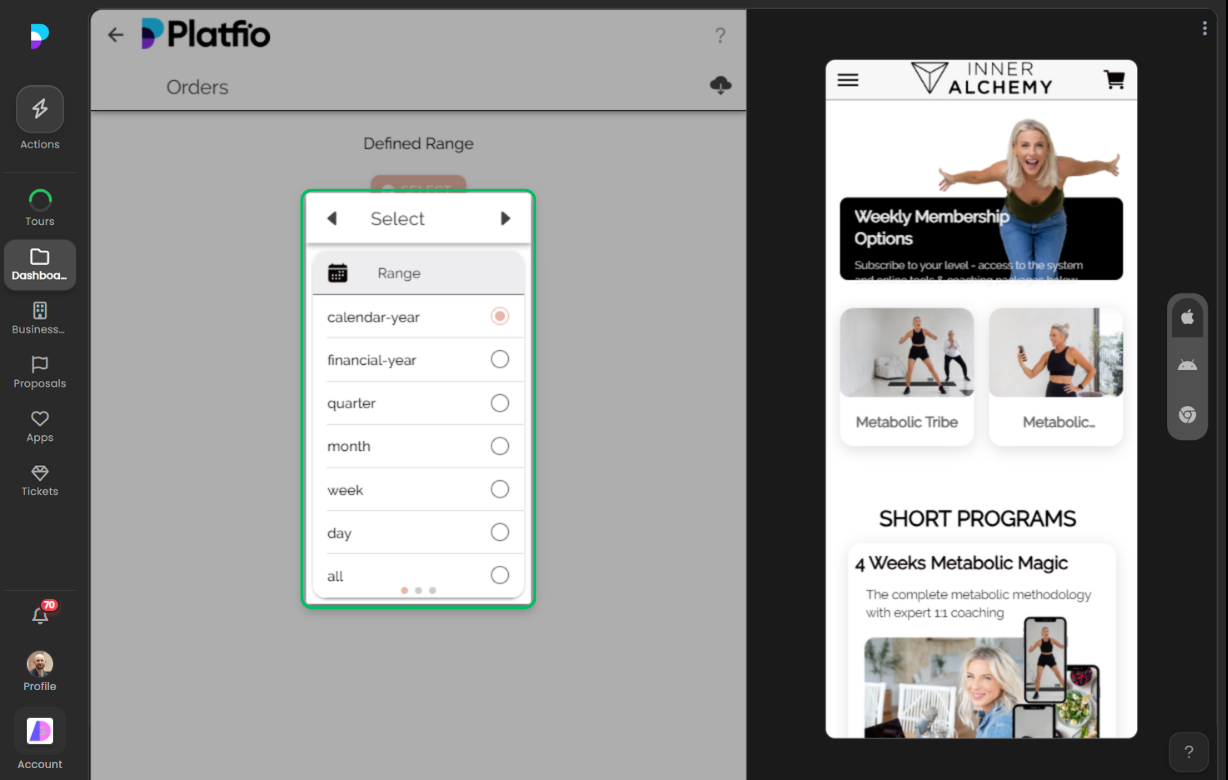
Reports can be filtered by date range, letting staff zero in on a specific week, month, or custom period. This flexibility means they can compare performance across seasons, track the impact of a promotion, or generate figures for a monthly review.

Viewing Financial Performance
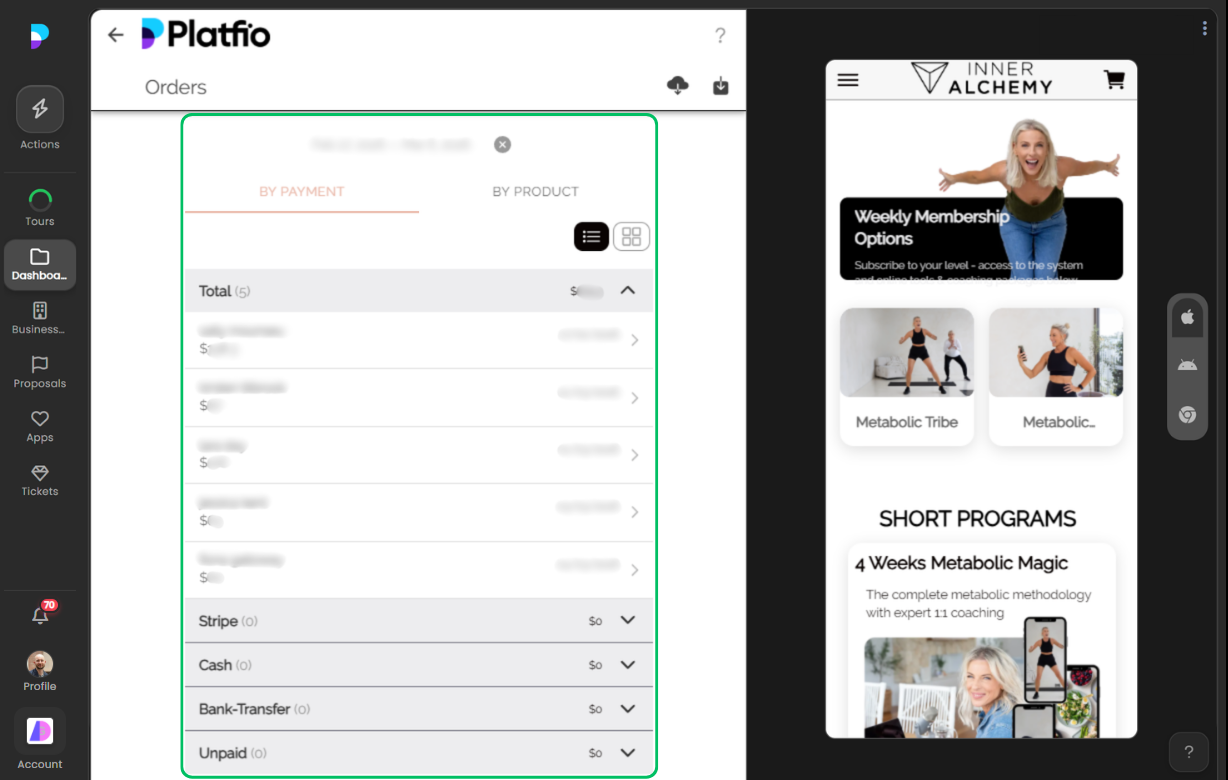
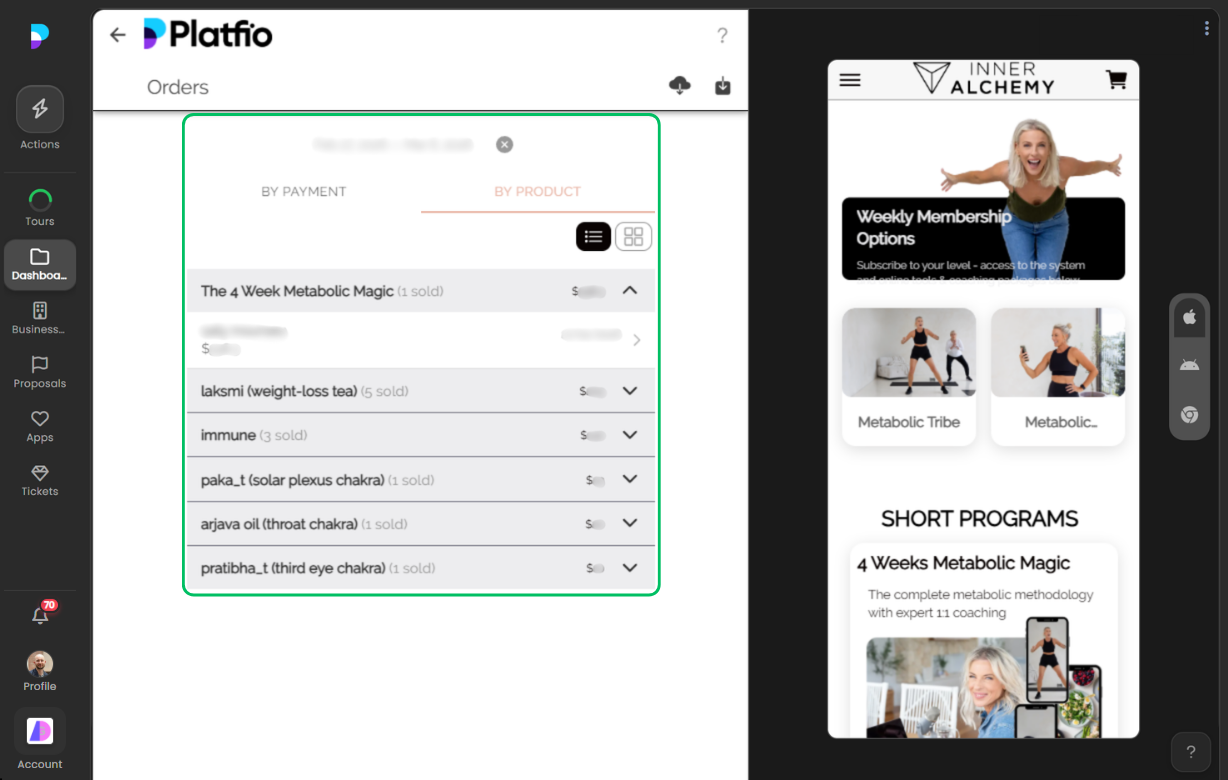
The final report shows the numbers that matter: total revenue, order count, and a breakdown of sales over the selected period. It gives store owners and agency staff a clear picture of how the business is performing — the kind of insight that turns a simple storefront into a well-run operation.

See it in action
Ready to deliver better software, faster?
See how Platfio gives your agency the tools to build, ship, and support apps your clients will love.
← All features