Ticketing System
Track and resolve client issues with a structured support ticketing workflow.
Never lose track of a client issue. The Ticketing System gives agencies a structured way to manage support requests — from the moment they’re raised to the moment they’re resolved.
Overview
The Ticketing System provides a structured workflow for tracking and resolving client issues. When clients report bugs, request changes, or need help, tickets are created, assigned, and tracked through to resolution. Agencies get visibility into their support workload across all clients, and clients get transparency into when their issues will be addressed — all through a shared conversation thread.
Key Capabilities
- Ticket creation — Clients submit issues through the portal, or the team creates tickets on their behalf
- Assignment — Assign tickets to the right team member so nothing falls through the cracks
- Status workflow — Move tickets through a clear lifecycle: Received → In Progress → Awaiting Customer Response → On Hold → Resolved
- Rich messaging — Communicate with clients directly inside the ticket using text, audio, video, images, and links
- Client portal — Clients can view their open and closed tickets, follow the conversation, and reply — all from their own branded portal
A Closer Look
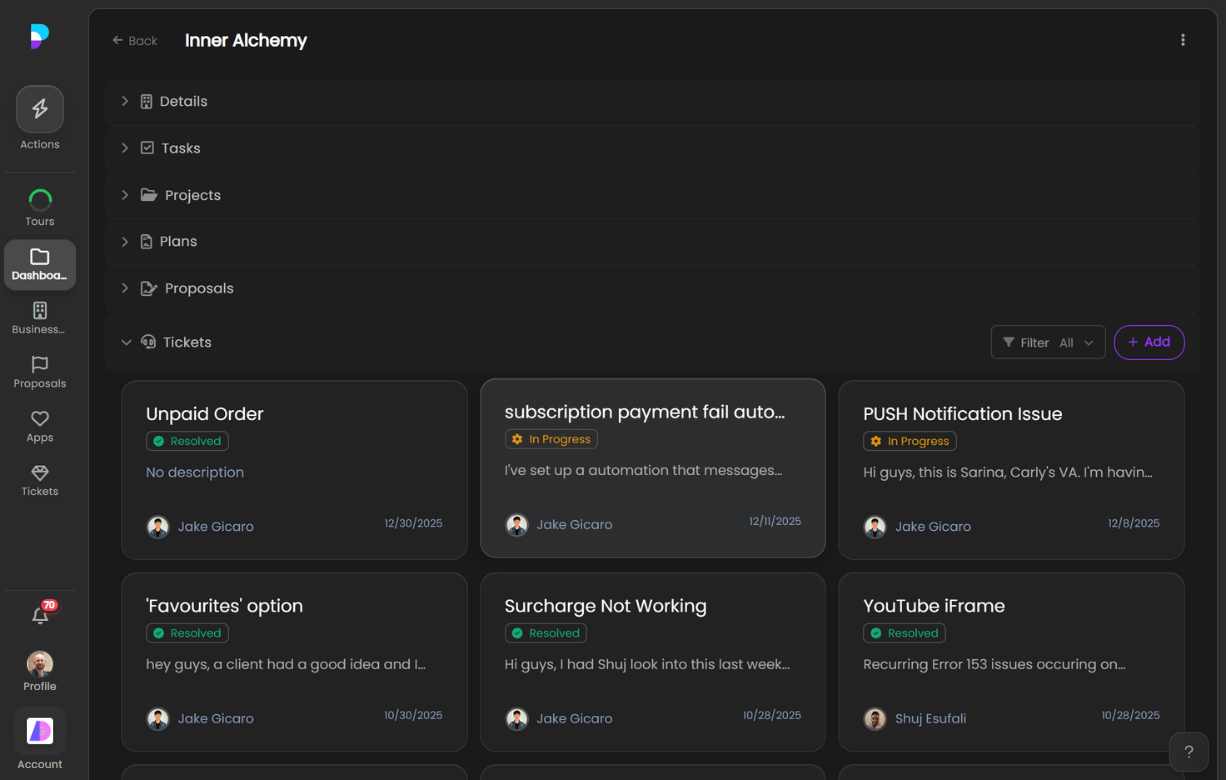
Ticket Board
The ticket board on the client dashboard gives your team a quick overview of all support requests for a given client. Each ticket card shows the title, current status, a preview of the description, who it’s assigned to, and when it was opened. Use the filter to narrow by status or click a ticket to open the full conversation.
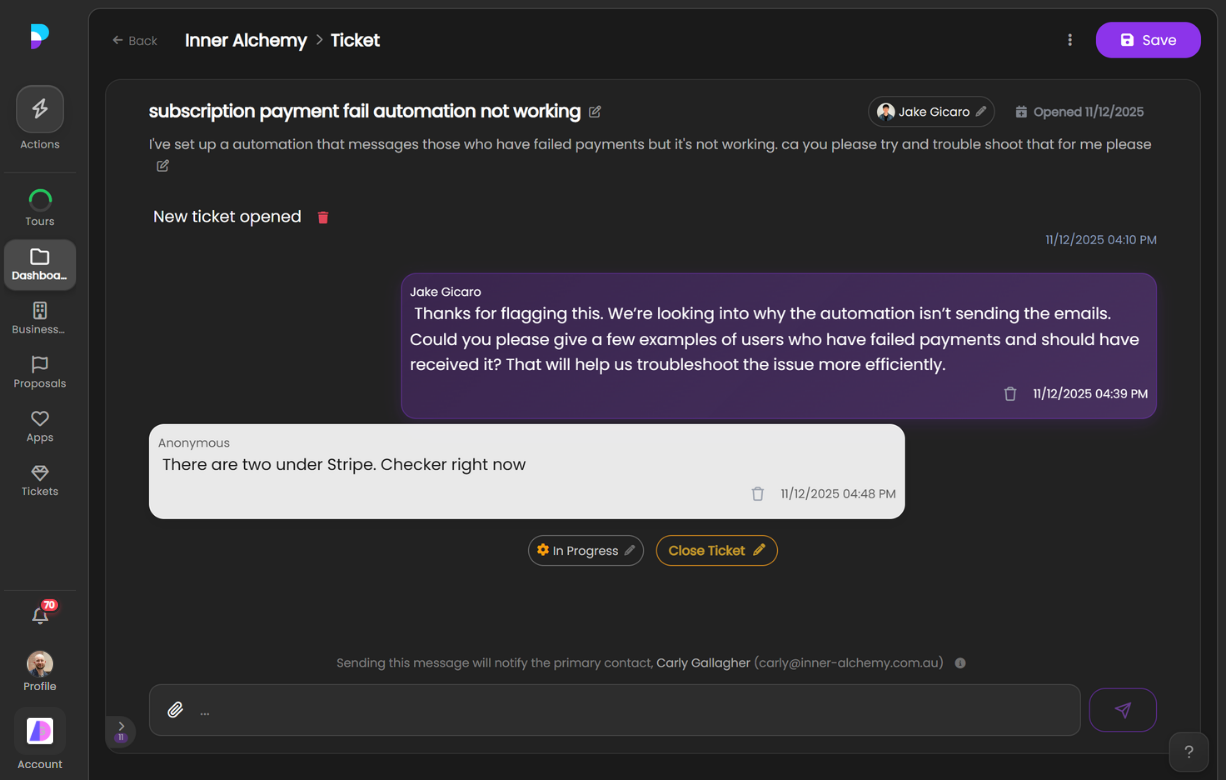
Ticket Conversation
Opening a ticket reveals the full conversation thread between your team and the client. Messages appear in chronological order — agency replies are highlighted so it’s easy to follow who said what. The conversation doubles as an audit trail, capturing every exchange from the initial report through to resolution.
Status Workflow
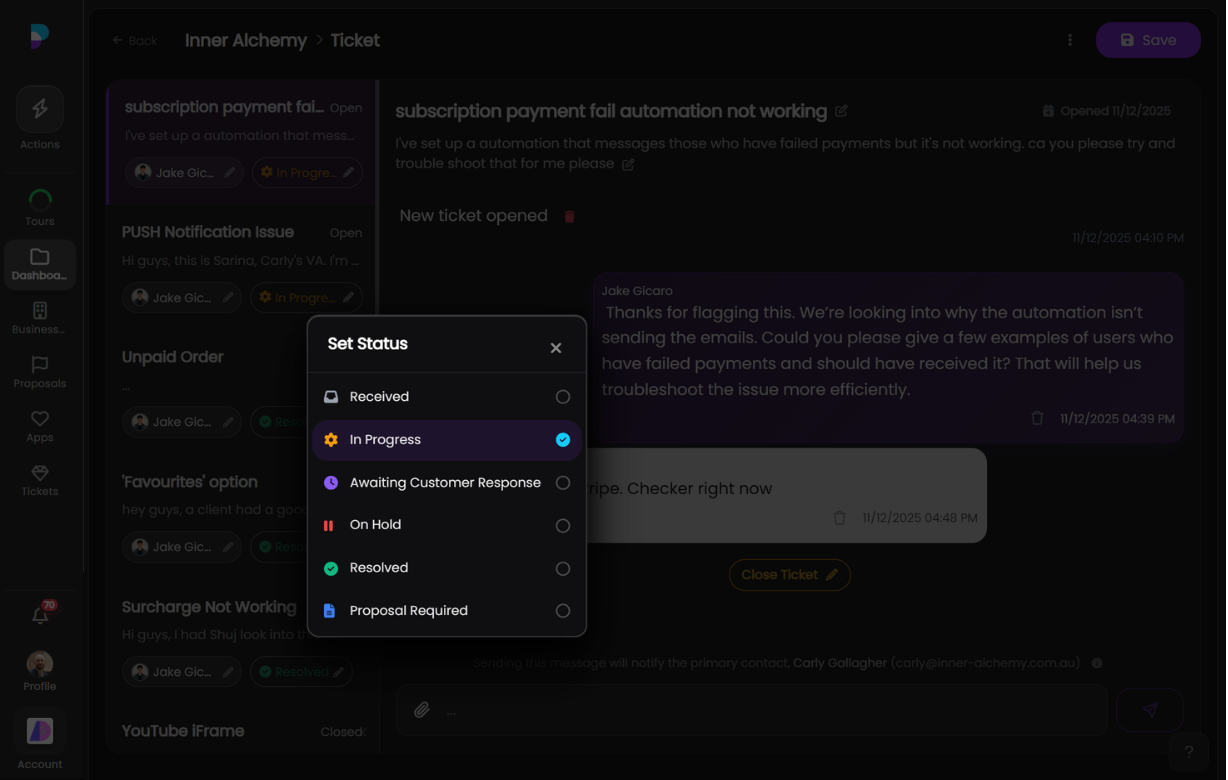
Tickets move through a structured set of statuses that reflect where things are at. Set the status directly from within the ticket — options include Received, In Progress, Awaiting Customer Response, On Hold, Resolved, and Proposal Required. Status changes are visible to both your team and the client.
Assignment
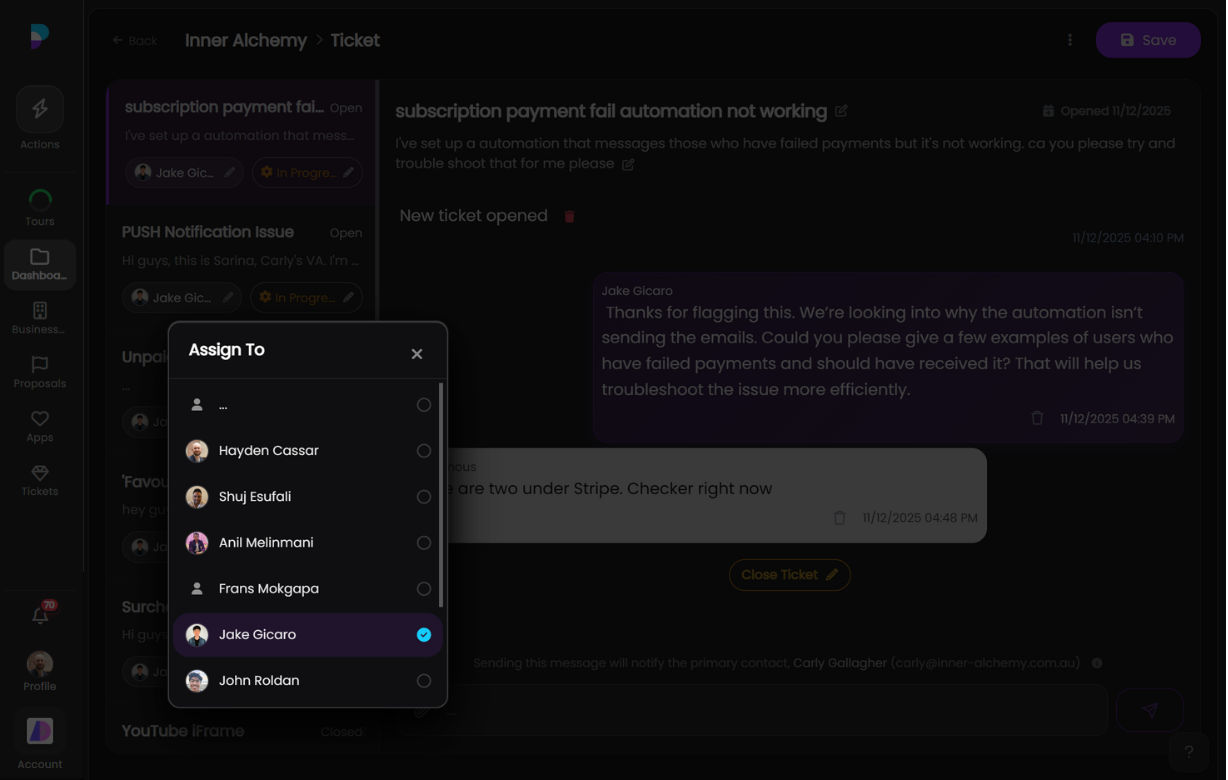
Assign tickets to specific team members so it’s always clear who’s responsible. The assignment picker shows everyone on the team — select a person to take ownership, or leave it unassigned until triage is complete.
Rich Attachments
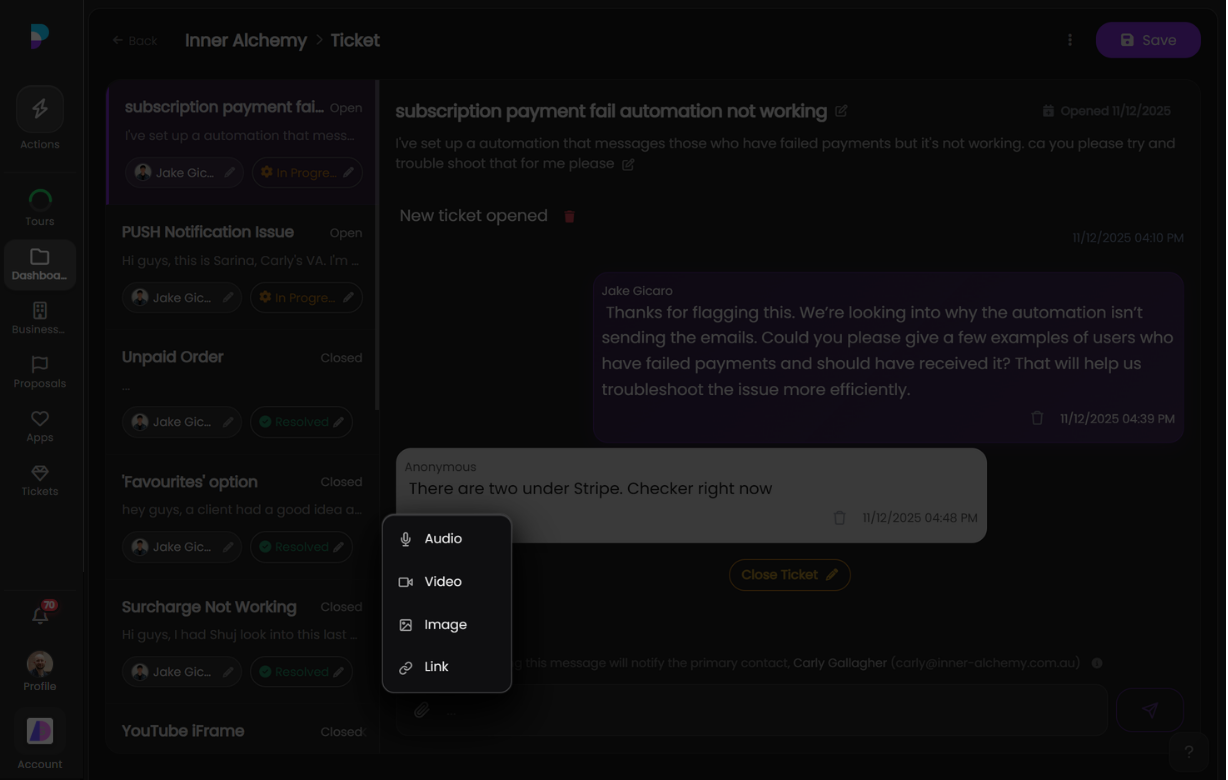
Go beyond text. The message composer supports multiple attachment types so your team and clients can communicate clearly:
- Audio — Record a voice message directly from the ticket
- Video — Record your screen (with optional webcam and mic) to walk through an issue or demonstrate a fix
- Image — Attach screenshots or photos
- Link — Share a URL with a preview card in the conversation
Screen Recorder
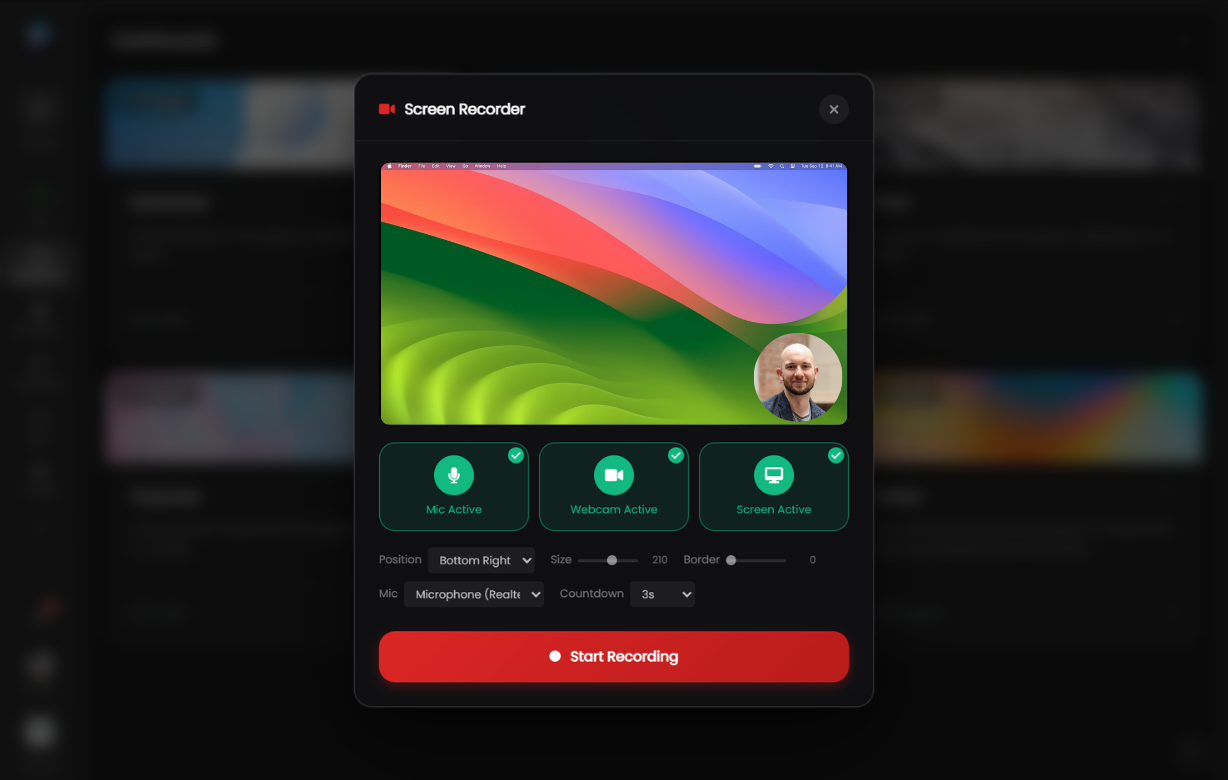
The built-in screen recorder lets you capture your screen, webcam, and microphone in a single recording. Choose the webcam position and size, pick your mic input, set a countdown, and hit record. The video is attached directly to the ticket conversation — no need for external tools.
Voice Messages
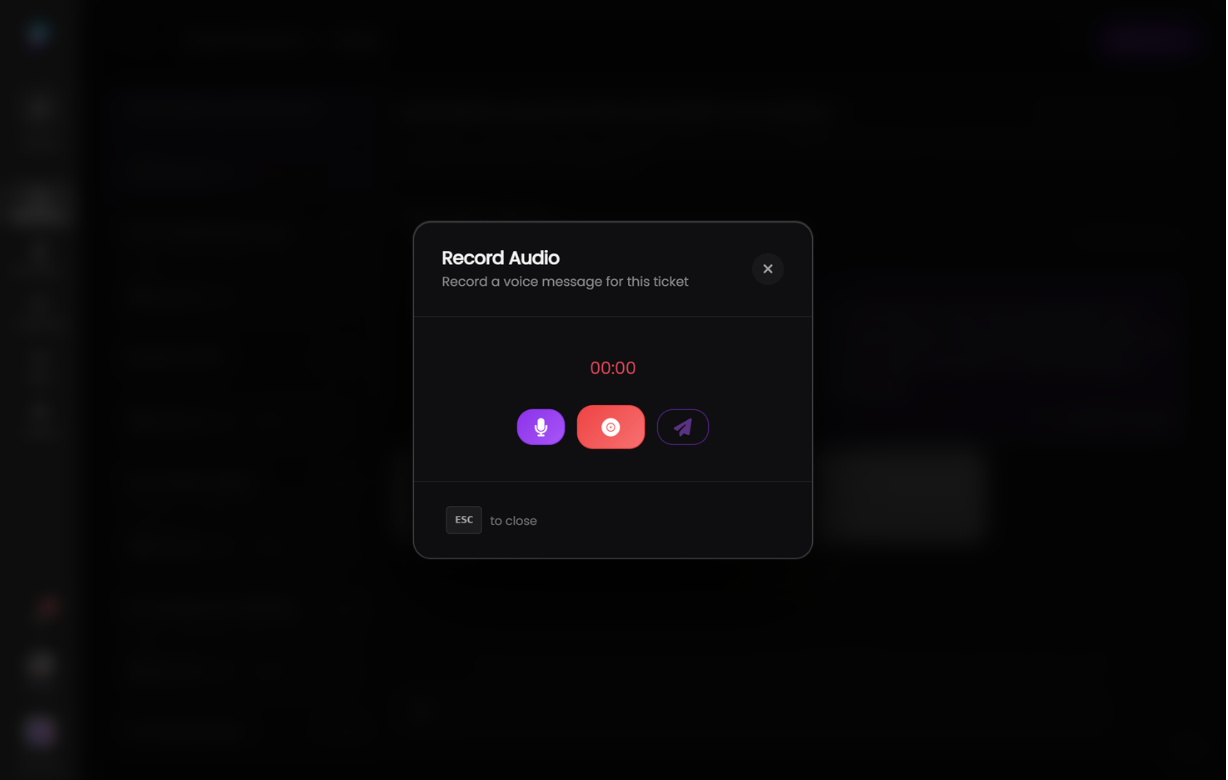
For quick updates or explanations that are easier to say than type, record an audio message straight from the ticket. Hit the mic button, record your message, and send it in one step.
Client Portal
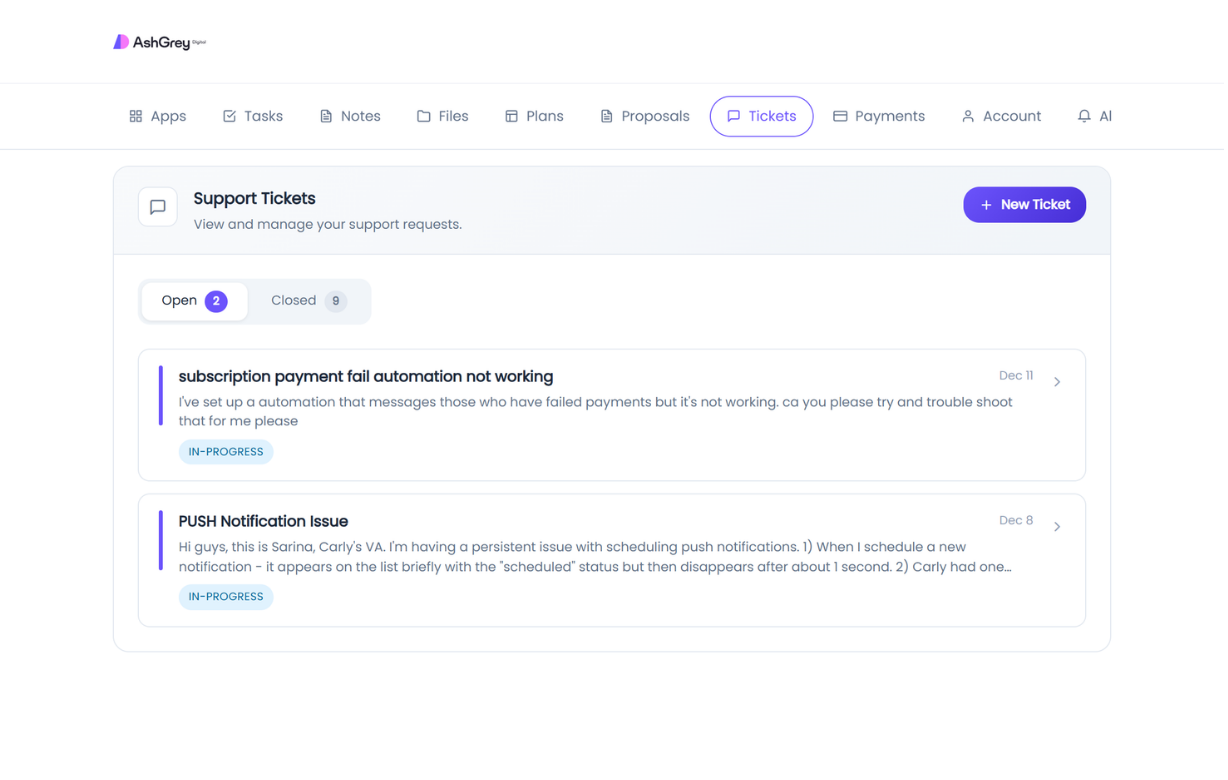
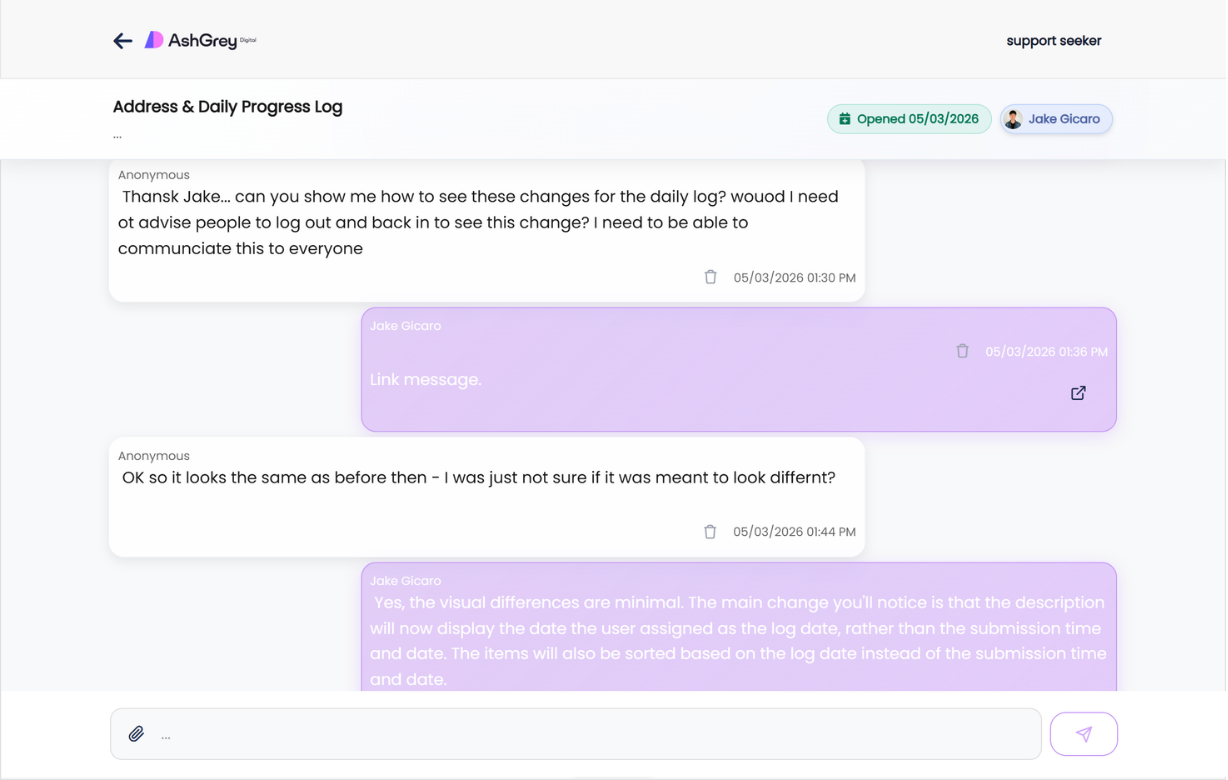
Clients see their tickets through their own branded portal. The Support Tickets page shows open and closed tickets with their current status, description preview, and date. Clients can open a ticket to read the full conversation and reply directly — keeping all communication in one place.
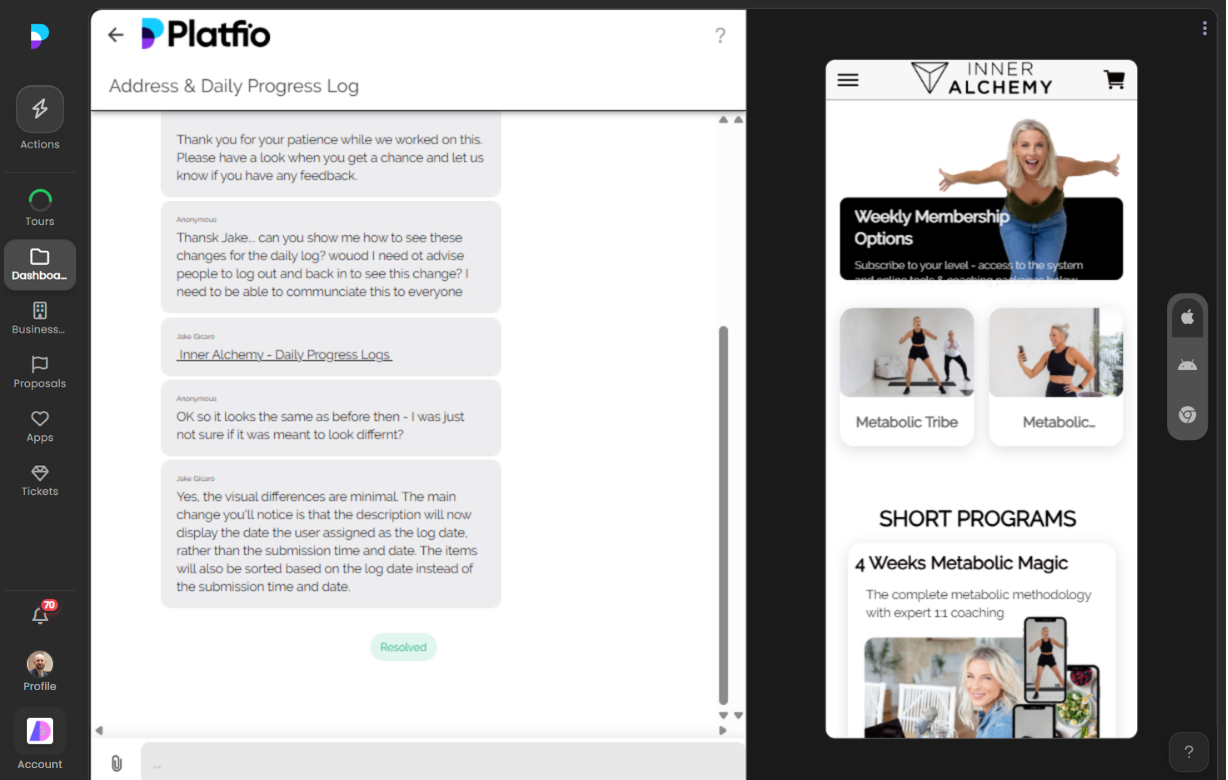
In-App View
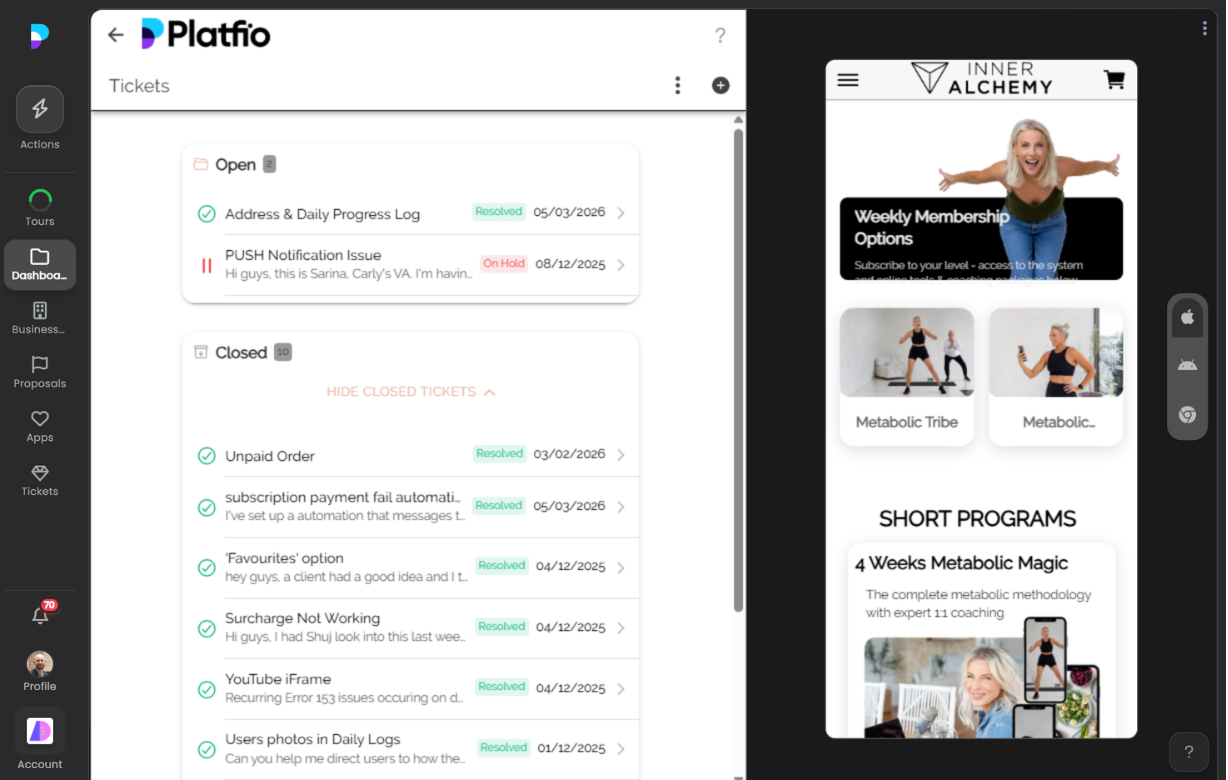
Clients can also access their tickets directly inside their app — no need to switch to the portal. The ticket list and conversation thread are built right into the app, so clients can raise and follow up on issues from whichever surface suits them best.
Deliver better software, faster.
Start with Platfio, or talk with us about how it fits your agency workflow.