

Onboarding Wizard
Guide new clients through a step-by-step onboarding process to collect requirements and set expectations.
Start every client relationship on the right foot. The Onboarding Wizard walks new clients through a guided setup process.
Overview
The Onboarding Wizard provides a step-by-step guided experience for new clients. Instead of unstructured kickoff calls and scattered intake forms, the wizard collects everything the agency needs — branding assets, project requirements, target audience, technical preferences, and more — in a structured, branded flow. It sets clear expectations and gathers complete information before work begins.
Key Capabilities
- Step-by-step flow — Guided wizard walks clients through each stage of onboarding
- Requirement collection — Structured forms capture branding, requirements, and preferences
- Asset upload — Clients upload logos, brand guidelines, content, and reference materials
- Progress tracking — Both the agency and client can see what’s been completed and what’s still needed
A Closer Look
Wizard Configuration
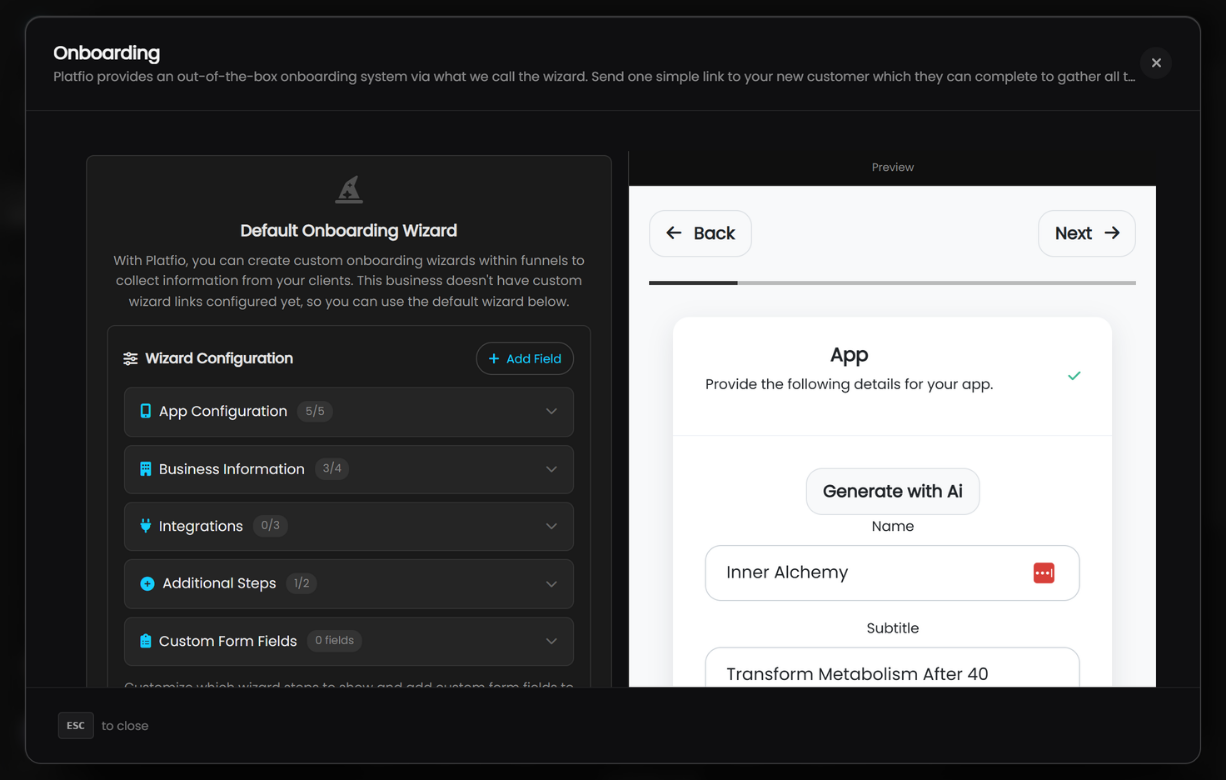
Agencies configure the onboarding wizard from the Onboarding section. The left panel shows all configurable sections — App Configuration, Business Information, Integrations, Additional Steps, and Custom Form Fields — each with a count of active fields. Add or remove fields, reorder sections, and preview the live wizard on the right.
Welcome
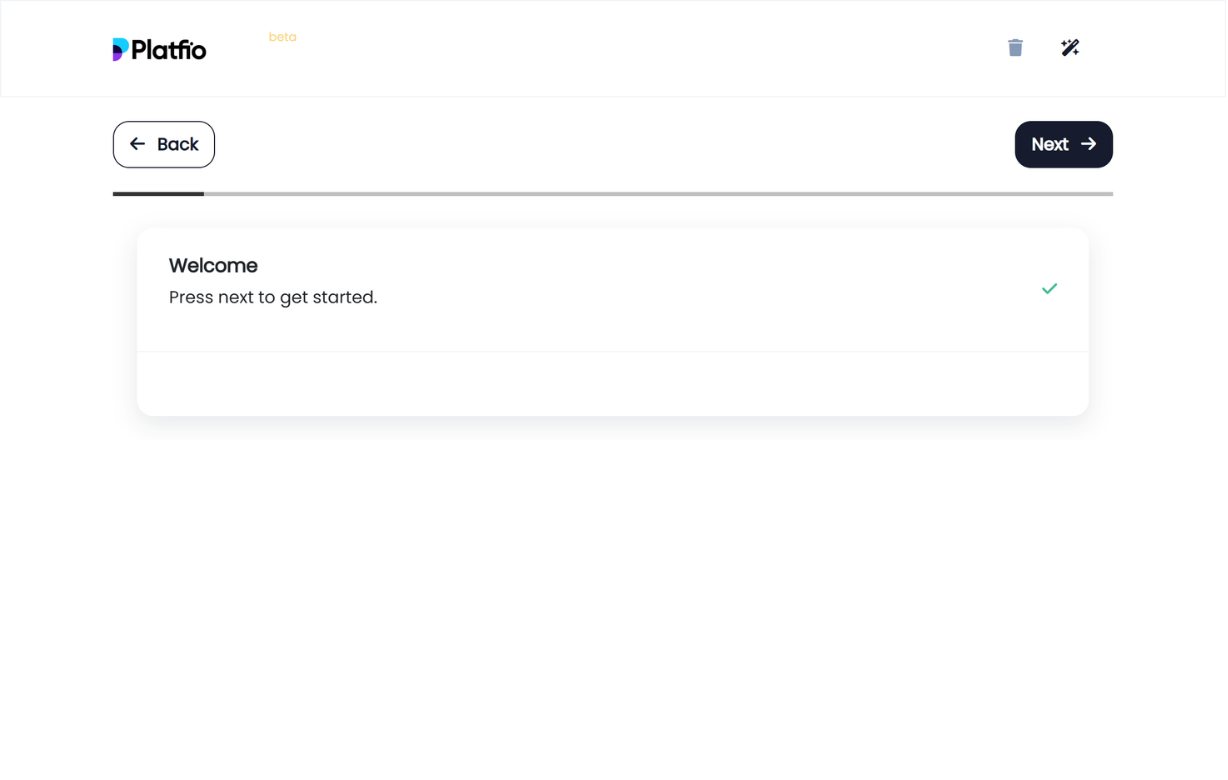
The wizard opens with a simple welcome step. Clients see a greeting message and press Next to begin — setting expectations and easing them into the flow.
App Details
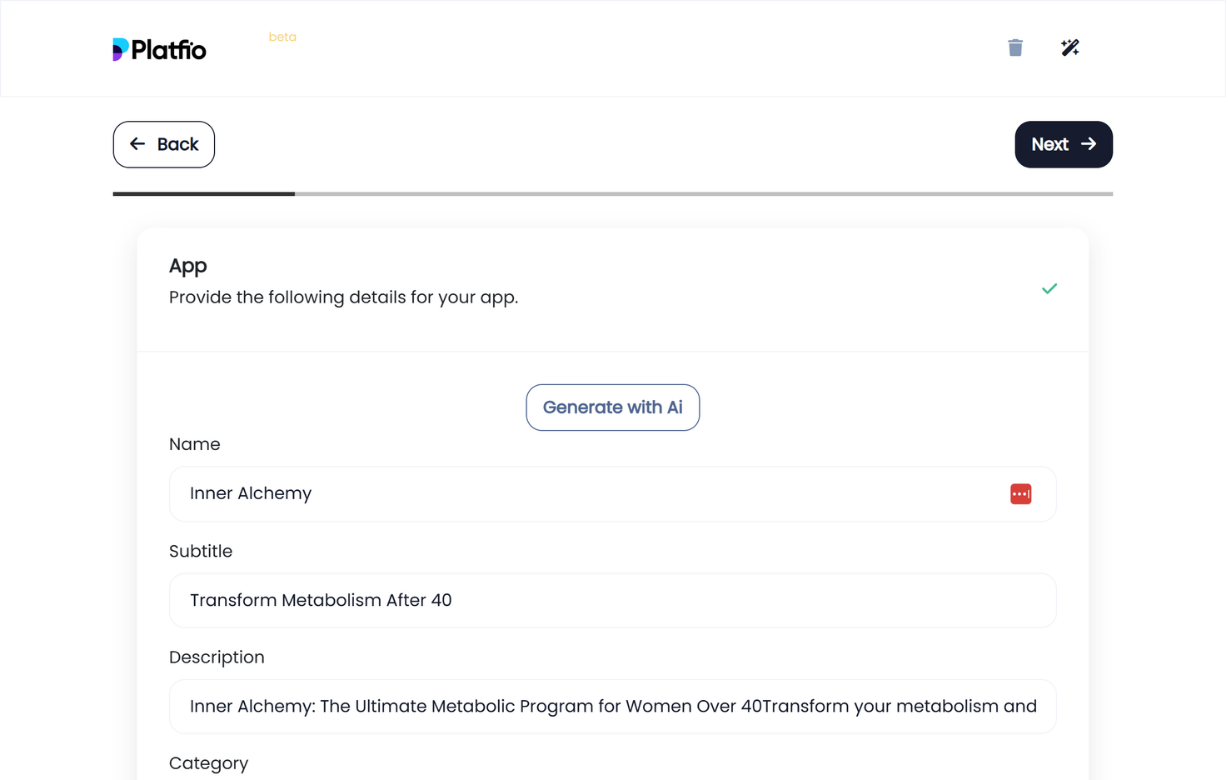
Clients provide the core details for their app: name, subtitle, description, and category. An AI generation option lets clients auto-fill fields from a prompt, and a chat button beside each field offers inline assistance.
Icon
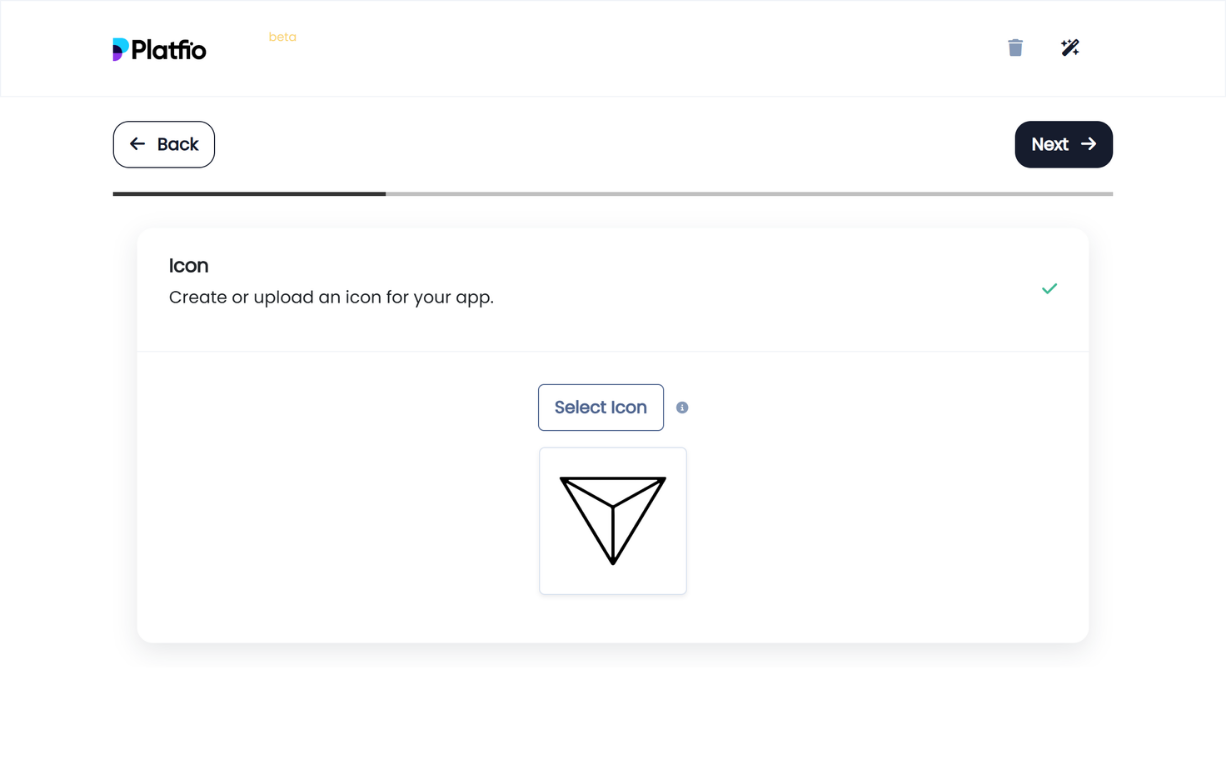
Clients create or upload an icon for their app. A built-in icon selector provides a library of options so clients can pick something that fits their brand without needing a designer.
Logo
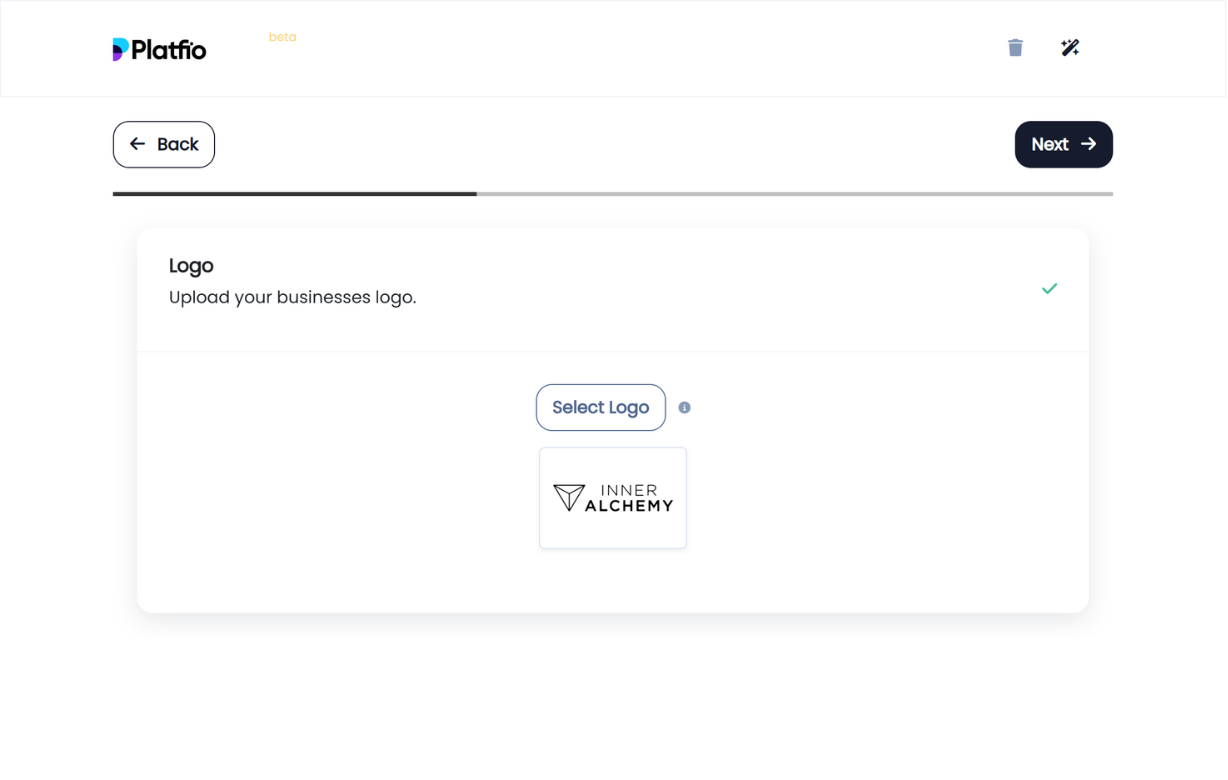
Clients upload their business logo. The preview displays a live thumbnail so they can confirm the asset looks right before moving on.
Brand Colors
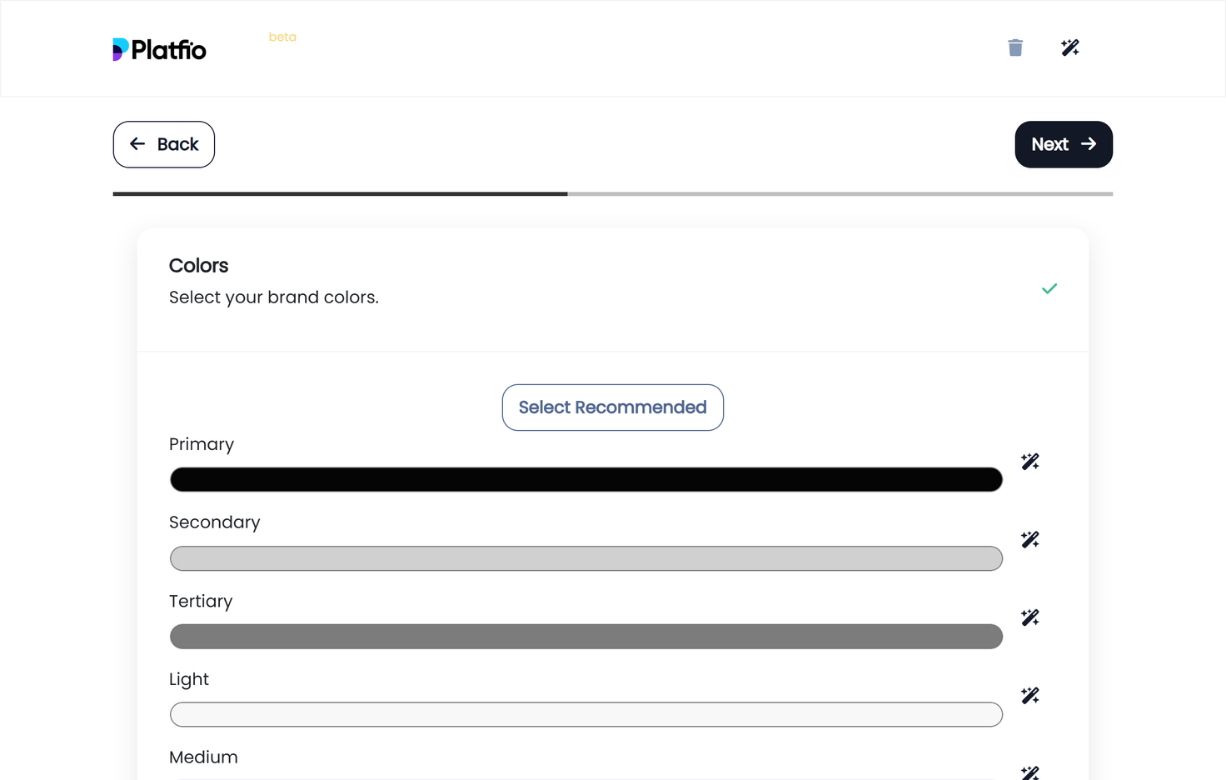
Clients select their brand color palette — primary, secondary, tertiary, light, medium, and more. A “Select Recommended” option auto-populates a harmonious palette, and each color can be fine-tuned individually.
Onboarding Preferences
Clients provide additional onboarding details specific to the agency’s requirements. When no custom fields are configured, this step displays a simple “None” state.
Navigation Style
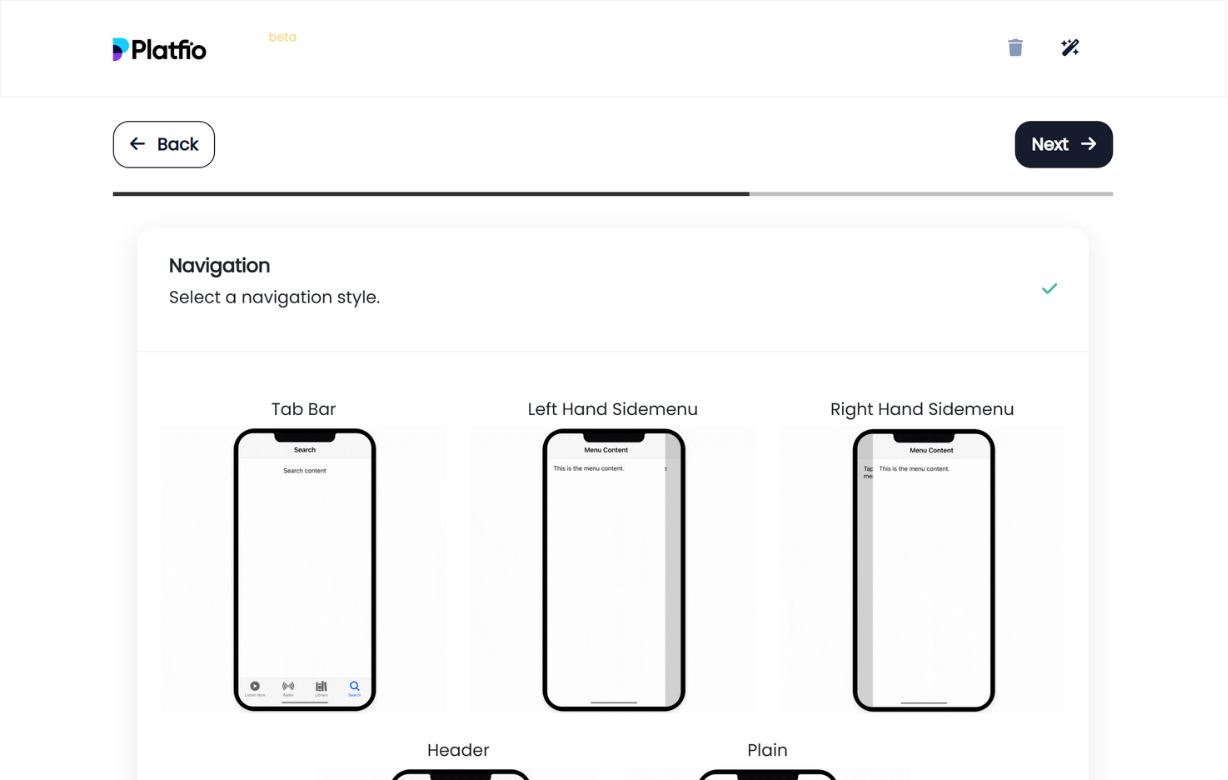
Clients choose the navigation layout for their app from visual previews: Tab Bar, Left Hand Sidemenu, Right Hand Sidemenu, Header, or Plain. Each option shows a device mockup so clients can see how it looks.
Media Preferences
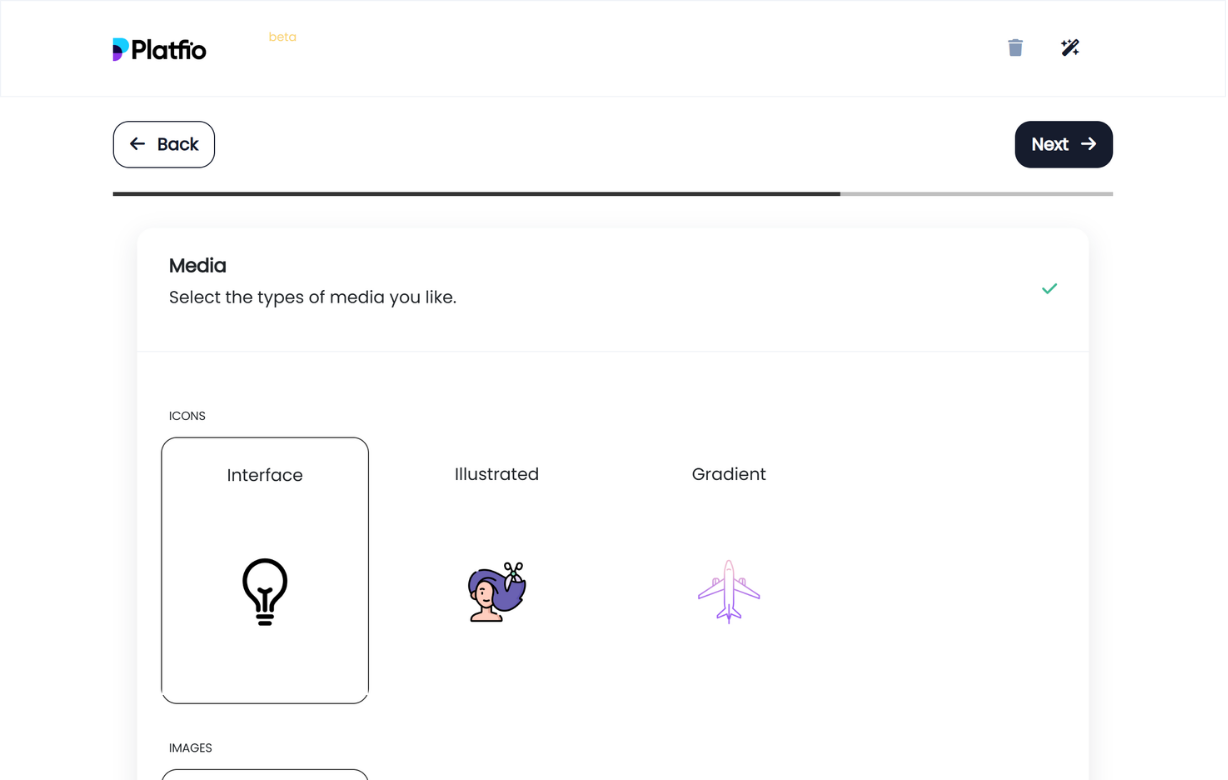
Clients select the types of media they prefer — choosing between icon styles (Interface, Illustrated, Gradient) and image categories. Visual samples accompany each option to make the choice intuitive.
Business Location
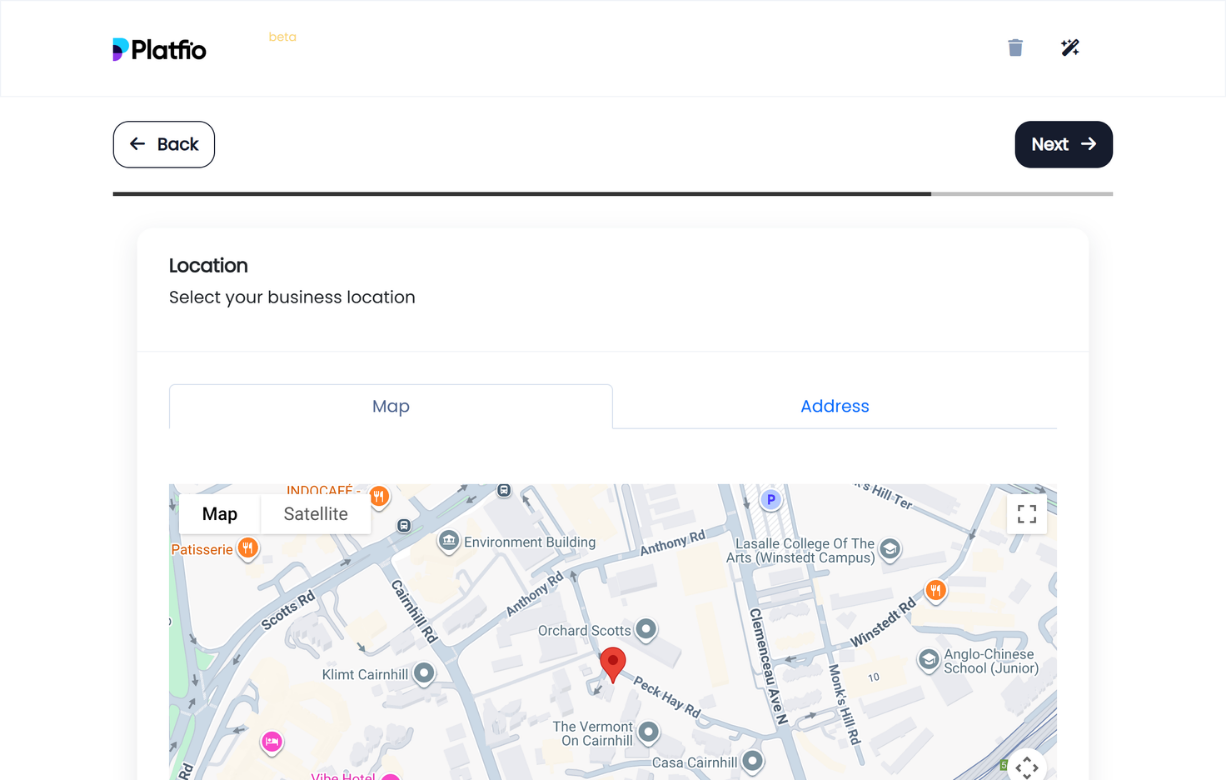
Clients set their business location using an interactive map or by entering an address manually. The map view shows a pin on the selected location with Map and Address tabs for switching input methods.
Opening Hours
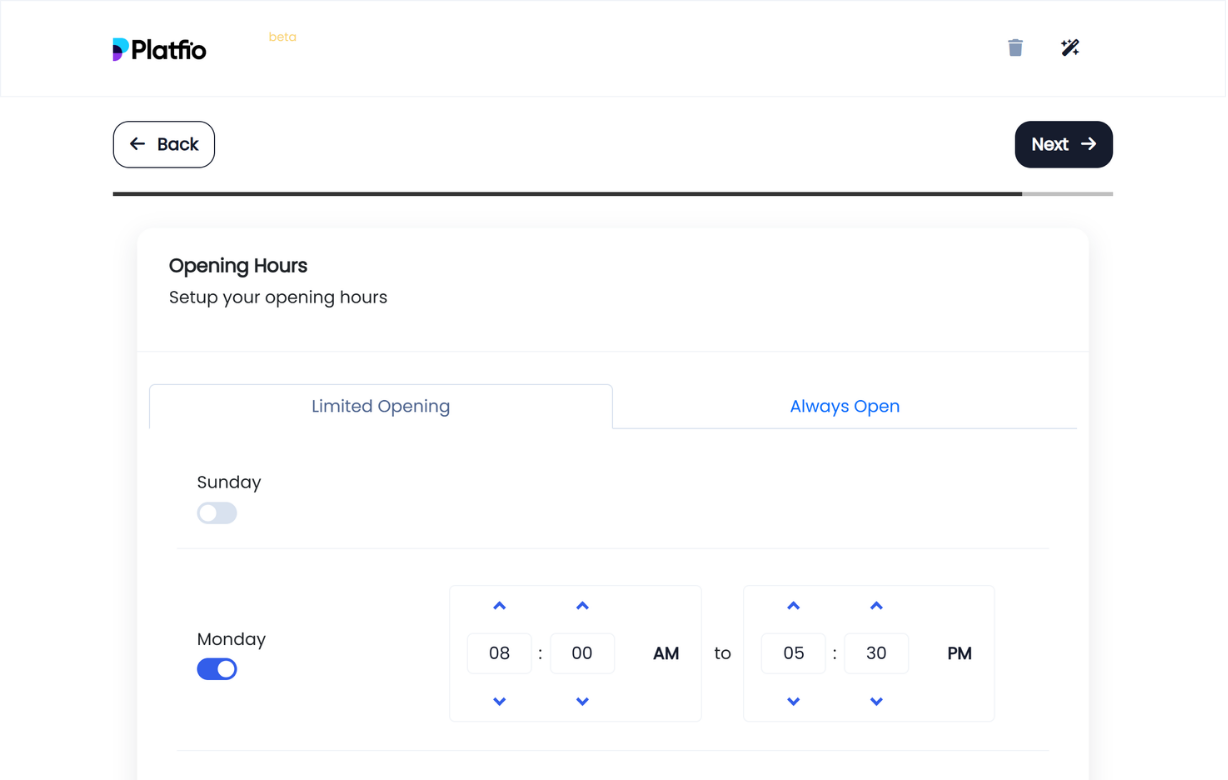
Clients configure their business opening hours. Toggle individual days on or off, set start and end times with AM/PM selectors, or switch to “Always Open” for businesses that operate around the clock.
Finish
The final step thanks the client and prompts them to press Finish to complete the wizard. All collected information is saved and ready for the agency to review.
Deliver better software, faster.
Start with Platfio, or talk with us about how it fits your agency workflow.